![fidesic-logo-300px-2023-2.png]](https://help.fidesic.com/hs-fs/hubfs/fidesic-logo-300px-2023-2.png?height=40&name=fidesic-logo-300px-2023-2.png)
With Use Purchase Orders on, Fidesic links each invoice to the purchase order it bills, checks the invoice against that PO (PO Match), and lets your approval workflow act on the result. Invoices that fully match can go straight through, while the rest go to someone who can sort out the difference.
Who can do this: users whose role has Manage Company Profile.
Turning purchase orders on
- Go to Settings → Company → Preferences.
- Under Purchase Orders, turn on Use Purchase Orders.
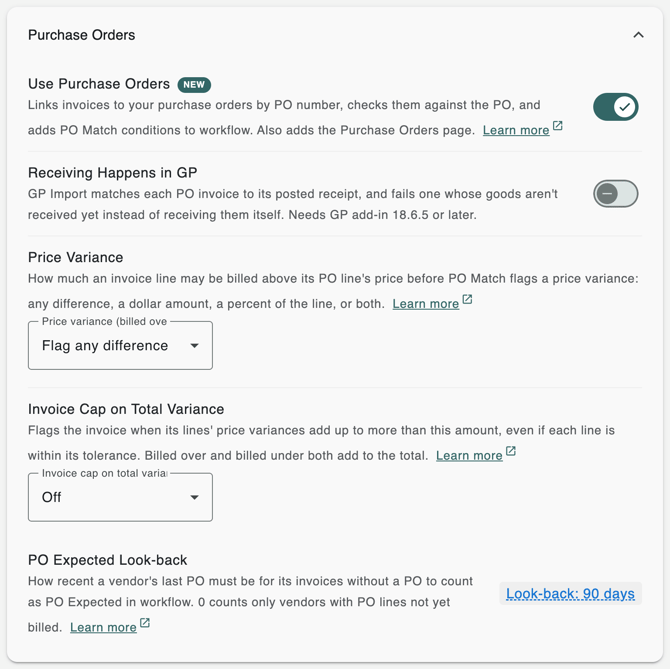
Once it's on, users whose role has View Purchase Orders get a Purchase Orders page, where they can search and export your POs and open one to see its lines and history. Each vendor gets an Open POs tab, and invoices get Import Lines from PO.
Getting your POs into Fidesic
Purchase orders come from your accounting system. You create and change them there.
- Dynamics GP: GP Vendor Sync brings in your open POs and their lines. Its Sync Purchase Orders setting, under GP Vendor Sync on Preferences, follows Use Purchase Orders until you change it.
- Business Central: turn on Sync Purchase Orders on the Fidesic Integration Setup page in Business Central. Fidesic takes them in while Use Purchase Orders is on.
- Other systems can send POs through the Fidesic API.
How an invoice links to a PO
An invoice links to a PO when its PO Number matches one of that vendor's purchase orders. Type it when you enter the invoice, or let MagiCapture read it from the document with Capture PO Numbers on under Settings → Accounts Payable → MagiCapture. A number that matches none of the vendor's POs shows no matching PO on the invoice.
PO Match compares the invoice line by line, so each line needs to be paired with its PO line. Import Lines from PO does that for you, including for invoices that bill several POs. See Import invoice lines from a purchase order.
What PO Match checks
Each time workflow runs on an invoice, PO Match gives it one or more of these results:
- Full Match: on a PO, with none of the price, quantity, line, charge or closed-PO problems below.
- Has Exceptions: any of those problems, or a PO number that matches no PO.
- Price Variance: a line's price is further from its PO line's than your tolerance allows, or the total variance is over your cap.
- Quantity Variance: a line bills more, or a different quantity, than the rule's quantity setting allows (see below).
- Line Not on PO: on a PO, but a line isn't paired with a PO line, or there are no lines.
- Charges Not on PO: freight, misc or tax beyond what the PO has left of it, or lines that don't add up to the invoice amount less those charges.
- PO Not Found: a PO number that matches none of the vendor's POs.
- No PO: no PO and no PO number. Credit memos and returns are always No PO.
- PO Unpriced: a priced line paired with a PO line sent at $0. It's a price variance too.
- PO Closed: a PO it bills was closed or canceled in your accounting system, or canceled in Fidesic.
- PO Expected: no PO, though the vendor bills against POs. See Route invoices that should have had a PO.
Routing invoices by PO Match
- Go to Settings → Users & Permissions → Approval Workflow.
- If you don't have a PO Match stage yet, click Add Stage and add one.
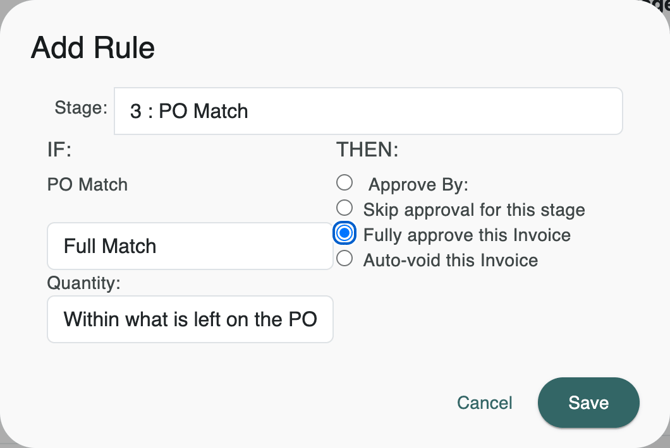
- Click Add Rule, pick your PO Match stage, and choose a result, such as Full Match or Has Exceptions.
- For Full Match, Has Exceptions and Quantity Variance, choose how quantities are judged: Must equal the PO line (exactly the quantity ordered, and no other invoice has billed the line), or Within what is left on the PO line, so a PO can be billed in parts.
- Choose who approves, and save.
Allowing small differences
By default, any price difference is a Price Variance, and freight, misc or tax on an invoice whose PO has none is flagged. You can allow small differences for the company, and give a vendor its own values under PO Match Tolerances on its Vendor Details tab, where Freight Expected on PO and Expect PO also live. See Set PO match tolerances for price differences and, for charges not on the PO, Enter freight, misc and trade discount as invoice charges.
For Dynamics GP users
With purchase orders on, an invoice on a PO, whether on its header or any of its lines, imports into GP with its lines through Purchasing, and invoices with no PO import through Payables. Split the GP Import by Purchase Order is always on for you while purchase orders are on. See Importing Invoices From Fidesic into the Purchasing Module in GP.
- Receiving Happens in GP, under Purchase Orders: GP Import matches each PO invoice to its posted receipt, and fails one whose goods aren't received yet instead of receiving them itself. It needs version 18.6.5 or later of the Fidesic add-in for GP.
- Charge Accounts from PO Lines, under GL and Dimension Settings when Invoice Charges is on, codes a PO invoice's tax, freight, misc and trade discount from the accounts on its PO lines. See Charge accounts from PO lines.