![fidesic-logo-300px-2023-2.png]](https://help.fidesic.com/hs-fs/hubfs/fidesic-logo-300px-2023-2.png?height=40&name=fidesic-logo-300px-2023-2.png)
Invoices often carry charges on top of the goods or services billed: freight, handling or fuel surcharges, and trade discounts. With Invoice Charges turned on, each of these gets its own row on the invoice, with its own account. Fidesic totals them apart from the subtotal, checks them against the PO, and sends them to Dynamics GP as charges rather than as purchase lines.
Turning it on
Who can do this: users whose role has Manage Company Profile.
- Go to Settings → Company → Preferences.
- Turn on Invoice Charges (Freight, Misc, Trade Discount).
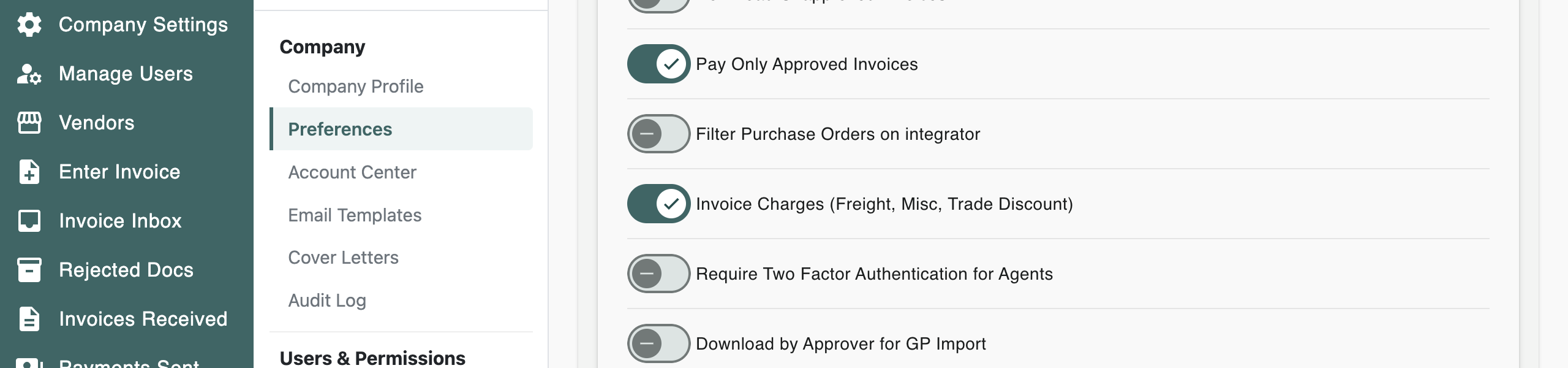
It is off by default.
Adding a charge to an invoice
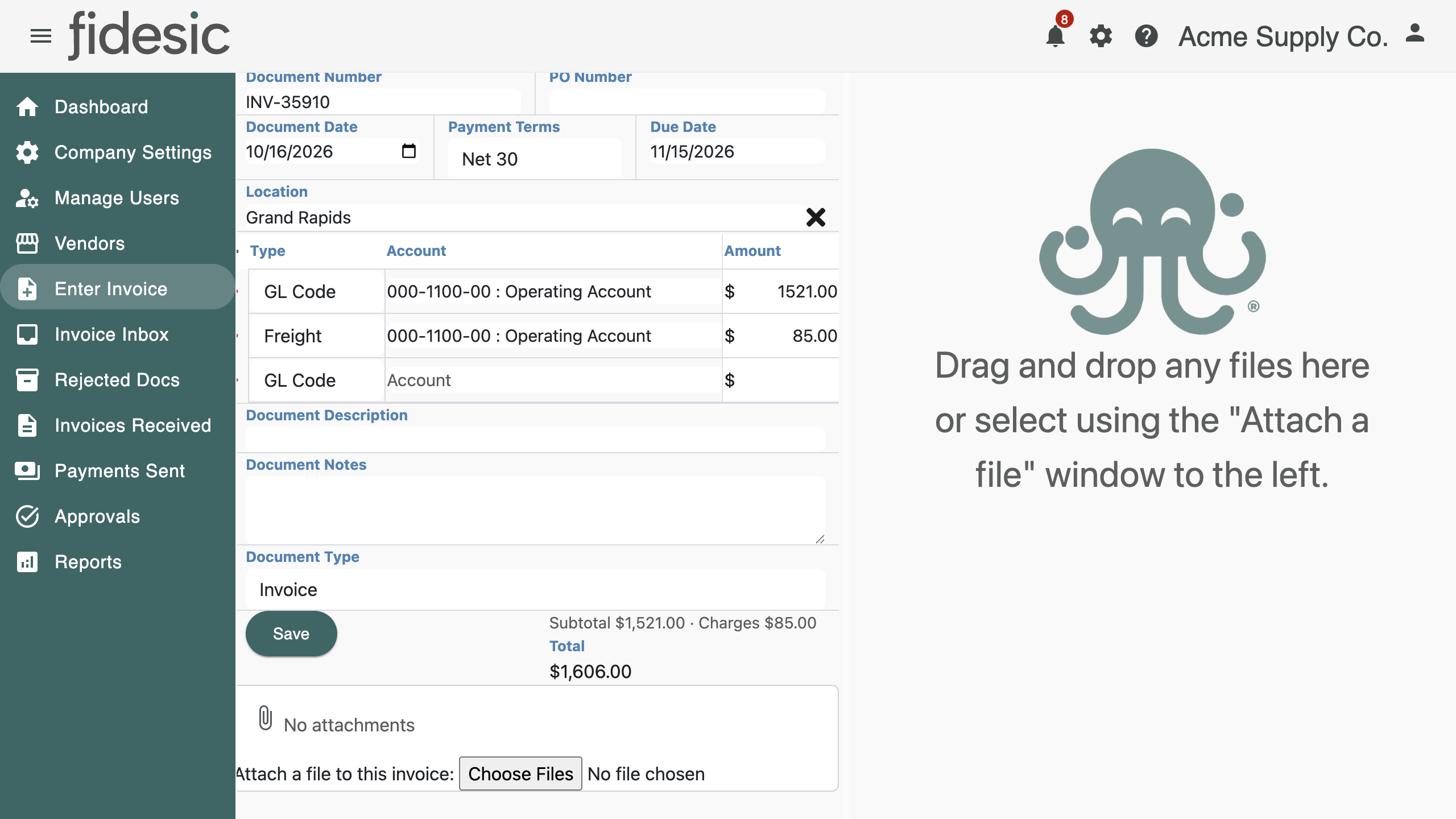
- When entering or adjusting an invoice, add a row to the GL coding.
- In the row's Type list, pick Freight, Misc or Trade Discount. If your company doesn't use tax codes, Tax is offered too.
- The account fills in from the vendor's default account for that charge, if the vendor has one, or else from your company's capture account. Change it if needed, and enter the amount.
Each charge row has its own account and dimensions. Under the coding, Fidesic shows the Subtotal and the Charges separately above the invoice total.
Charges captured by MagiCapture
MagiCapture reads freight, and miscellaneous charges such as handling, fuel surcharges and fees, separately from the line items. Each one goes on its own row, on the vendor's default account for that charge. If the vendor has none, freight goes to the account set in Capture Freight as a GL Line (GL Code) under Settings → Accounts Payable → MagiCapture. A charge with no account to go to stays in the invoice's coding as before.
Charges on PO invoices
On an invoice matched to a PO, each charge is compared with what the PO has left of that charge. The invoice page shows Matched when it fits, or Over PO when the invoice charges more than the PO allows.
For Dynamics GP users
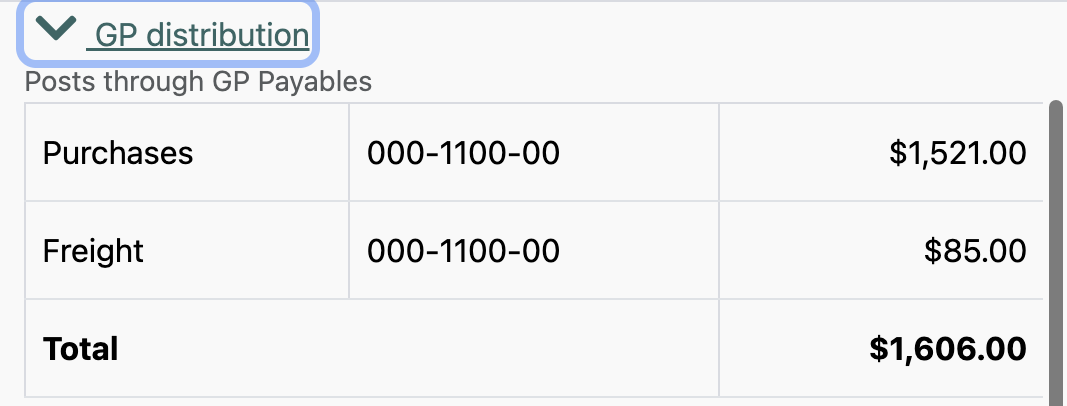
Freight, misc and trade discount rows are sent to GP as those charges, on their own accounts, rather than as purchasing lines. A GP distribution panel on the invoice page shows exactly what the GP import will post: each account and amount, and whether it goes through Payables or Purchasing.