![fidesic-logo-300px-2023-2.png]](https://help.fidesic.com/hs-fs/hubfs/fidesic-logo-300px-2023-2.png?height=40&name=fidesic-logo-300px-2023-2.png)
When a vendor, GL account or purchase order from Dynamics GP or Business Central doesn't show up in Fidesic, Sync Logs tells you why. It lists each time your sync couldn't send a record, with the record and the reason, so you can fix it at the source.
Who can use this: users with Manage Company Profile, at Fidesic AP companies whose accounting package is Dynamics GP, Business Central or QuickBooks Online.
QuickBooks Online companies use the same page. For what its entries mean, see Troubleshooting QuickBooks Online sync errors.
Opening Sync Logs
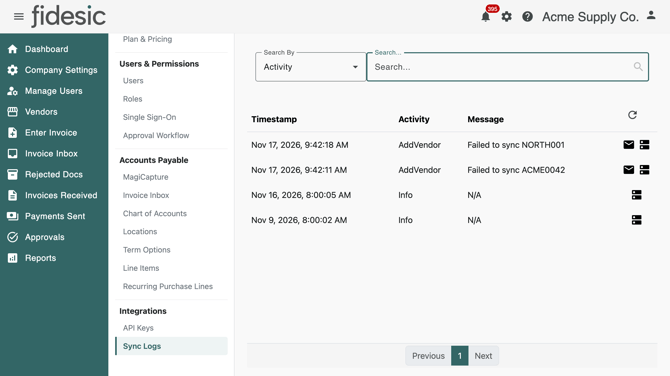
Go to Settings → Integrations → Sync Logs. Entries are listed newest first, 40 to a page. Use Previous and Next at the bottom to page through older ones, and the refresh button at the top right of the list to load new ones.
If Sync Logs isn't in your Settings, check Accounting Package under Settings → Company → Company Profile, and ask an admin whether your role has Manage Company Profile.
What gets logged
The page shows entries from your company's own accounting system only.
| Accounting system | Where entries come from | What's logged |
| Dynamics GP | GP Vendor Sync, the Windows service that sends GP data to Fidesic | Each record it couldn't send, such as a vendor, GL account, Analytical Accounting code, term, purchase order or receipt, item, historical invoice, payment, void or applied credit. Also an Info entry about once a week with the details of your installation. |
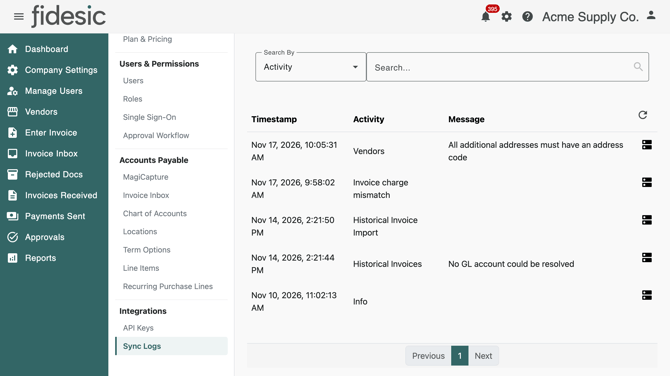
| Business Central | The Fidesic extension in Business Central | Each time Fidesic turned down something the extension sent, such as a vendor, chart of accounts, dimensions, a purchase order, payments or historical invoices. Also an Info entry when the extension is installed, upgraded or set up, a Historical Invoice Import entry when a historical invoice import finishes, and an Invoice charge mismatch entry (see below). |
| QuickBooks Online | Fidesic's QuickBooks Online sync | See Troubleshooting QuickBooks Online sync errors. |
The GP add-in, the Fidesic window inside Dynamics GP that imports invoices, doesn't write to Sync Logs. A problem importing an invoice into GP shows in GP, not here. Business Central sign-in problems, such as a wrong API key, aren't logged here either. Look for those in Business Central.
Reading an entry
| Column | What it shows |
| Timestamp | When the entry was logged, in your company's time zone. |
| Activity | What the sync was doing. For GP, it's the step that failed, such as AddVendor, AddGLCode or AddPurchaseOrder. For Business Central, it's the kind of record being sent, such as Vendors, Charts Of Accounts or Purchase Orders. Info entries are routine and aren't errors. |
| Message | What went wrong. For GP, it usually names the record, such as Failed to sync ACME0042. For Business Central, it's Fidesic's reason for turning the record down. Entries that aren't errors show N/A or nothing. |
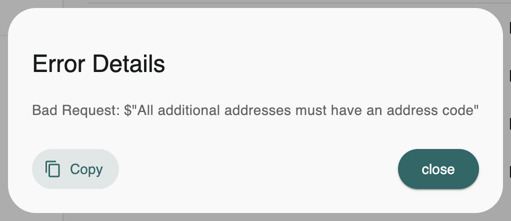
| Envelope icon (Show Error Details) | Opens the full error. For GP, this is where the reason is, after the vendor or account number in the Message. Click Copy to copy it for a support request. |
| Server icon (Show Server Details) | Opens the details of the installation that sent the entry. See below. |
Server Details
Server Details shows only the lines the entry has.
| Line | What it tells you |
| Sync Service Version | The version of GP Vendor Sync. Compare it with How to Update to the New Version of Fidesic Vendor Sync for GP. |
| Fidesic Module Version | For GP, the version of the Fidesic GP add-in. For Business Central, the version of the Fidesic extension. |
| Fidesic Module Name | Business Central only: the name of the Fidesic extension. |
| GP Version / BC Version | The version of Dynamics GP or Business Central. |
| GP Company Name and Connected Database | The GP company and database GP Vendor Sync reads from. If these aren't the company you expect, the sync is pointed at the wrong one. |
| Install Location | The name of the computer GP Vendor Sync runs on. Use it to find the machine when you need to open the sync's settings. |
| Sync GLs, Sync Temporary Vendors | Whether GP Vendor Sync sends GL accounts, and temporary vendors. |
| Vendor Class Exclusion List, GL Segment Exclusion List | The vendor classes and GL segments GP Vendor Sync skips. Records they cover are never sent, and that isn't logged as an error. |
| Request | Business Central only: exactly what the extension sent to Fidesic. |
Finding one record
- Under Search By, pick Activity or Error Details.
- Type what you're looking for and press Enter, or click the search icon.
- To see everything again, click the X in the search box.
Error Details searches the whole entry: the message, the full error and the server details, including what Business Central sent. Search it for a vendor ID, GL account or document number to find every entry about that record.
A vendor didn't appear in Fidesic
Dynamics GP
- Search Error Details for the vendor ID.
- If you find Failed to sync with that vendor ID, click the envelope icon to read the reason, and fix it on the vendor in GP.
- GP Vendor Sync tries a failed record again by itself, waiting longer after each failure, up to about every two and a half days. To send it straight away, run a First Sync as described in What to do if my GP Vendors and GLs stop Updating Automatically.
If nothing is logged for the vendor, open Server Details on the newest entry and check whether the vendor's class is in Vendor Class Exclusion List, or whether it's a temporary vendor while Sync Temporary Vendors is False. If neither applies, the sync may not be running. See the next section.
Business Central
- Search Error Details for the vendor number.
- A Vendors entry gives Fidesic's reason in Message. Server Details → Request shows what Business Central sent, so you can see which field caused it.
- Fix the vendor in Business Central and send it again. See How can I sync My Vendors between Business Central and Fidesic.
If nothing is logged, the vendor may never have left Business Central. Check Fidesic Integration Logs in Business Central, as described in Troubleshooting BC Integration Errors.
An invoice didn't import
Dynamics GP
Invoices are imported into GP by the GP add-in, which doesn't write to Sync Logs, so look at the import in GP itself. See Importing Invoices From Fidesic into the Purchasing Module in GP.
Sync Logs can still help when the cause is a vendor or GL account that never reached Fidesic: search Error Details for the invoice's vendor ID or account number.
Business Central
When you import invoices, Business Central shows a message with the result. Fidesic logs the parts it turned down, such as an Invoices or Purch. Line entry. For the full picture, check Fidesic Integration Logs in Business Central. See How to Import Invoices from Fidesic into Business Central and Troubleshooting BC Integration Errors.
An Invoice charge mismatch entry means an import finished, but the freight, tax or other charges on some invoices came out different in Business Central than in Fidesic. Those invoices were still imported. Business Central lists them in its import message under "Check these invoices before posting". Check them before you post.
Common messages and what to do next
| What you see | What it means and what to do |
| Failed to sync followed by a vendor ID, account number or PO number (GP) | That one record was turned down. Click the envelope icon for the reason, fix the record in GP, and let the sync retry it. |
| Failed to connect to Fidesic API. Check your credentials. or Failed to get Sync Settings. Check your credentials. (GP) | GP Vendor Sync couldn't sign in to Fidesic, so nothing synced. Check that the API key in the sync's settings still exists under Settings → Integrations → API Keys, which your account owner can see. |
| Too many failed API calls in a row. Aborting.. (GP) | Several records failed one after another, so the sync stopped that part of the run and will try again on the next one. Look at the entries just before it for the cause. |
| GLs need to sync properly before vendors so default GLs work. (GP; also for AA Meta and AA Codes) | GL accounts or Analytical Accounting codes failed, so vendors were held back. Fix the account or code entries first. |
| No new GP entries for more than a week, not even Info | GP Vendor Sync may have stopped. Follow What to do if my GP Vendors and GLs stop Updating Automatically. |
| The same GP error keeps coming back | Have Fidesic email you about it, and about the sync stopping: see Set how often GP Vendor Sync runs and who hears when it stops. |
| A GP problem with no entry here, or not enough detail to fix it | Turn on the sync's own log file and send it to Fidesic support: see How to log Vendor Sync Errors to File. |
| Any Business Central entry you can't resolve | Collect the call from Fidesic Integration Logs in Business Central and send it to support: see Troubleshooting BC Integration Errors. |
When you contact support about an entry, include its Timestamp, Activity and the text from Copy in Error Details.