![fidesic-logo-300px-2023-2.png]](https://help.fidesic.com/hs-fs/hubfs/fidesic-logo-300px-2023-2.png?height=40&name=fidesic-logo-300px-2023-2.png)
Fidesic sends emails and printed letters for you in your company's name. You can change what they say: the subject and body of each email, the cover letter mailed with your invoices, and the message printed on your paper checks.
Who can use this: users whose role has both Manage Company Profile, which shows the two pages in Settings, and Manage Company Roles, which lets them load and save templates. With only the first, the pages open but no template loads: Email Templates says Failed to load email templates.
Emails you can customize
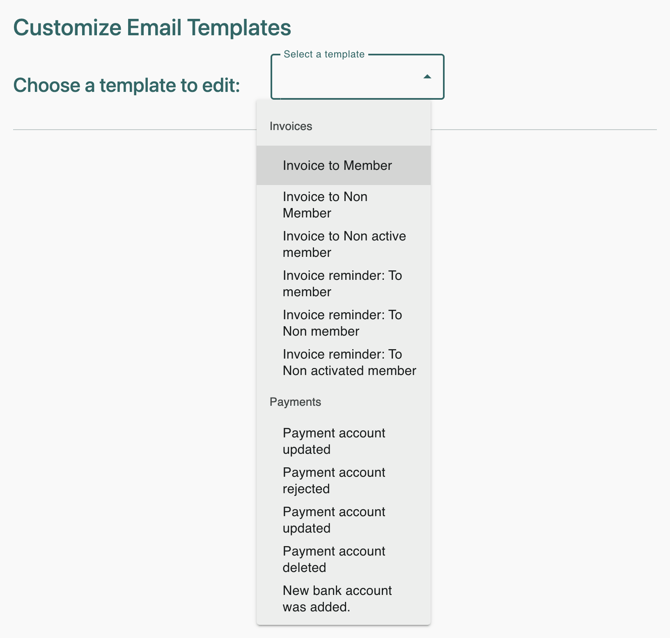
Go to Settings → Company → Email Templates and open Select a template. The list depends on what your company uses Fidesic for: a company that sends invoices sees the Invoices group, and the Payments group holds the payment and bank account emails.
| Template | Who gets it | When |
|---|---|---|
| Invoice to Member | A customer who has signed up for your Account Center | When you send them an invoice |
| Invoice to Non Member | A customer who hasn't signed up | When you send them an invoice |
| Invoice to Non active member | A customer who started signing up but hasn't activated their login | When you send them an invoice |
| Invoice reminder: To member, To Non member, To Non activated member | The same three kinds of customer | When a reminder goes out for overdue invoices. One reminder can list several invoices. |
| You've got money (member) | A vendor who has a Fidesic login | When you send them a payment |
| Payment account updated (listed twice) | The owner of the bank account or card | One is sent when someone updates a bank account or card. The other, with the subject Notice of Account Change, is sent when their bank tells Fidesic the account number changed. Pick each one to see its subject. |
| Payment account rejected | The owner of the bank account | When Fidesic can't validate the account |
| Payment account deleted | The person who deleted it | When a bank account or card is deleted |
| New bank account was added. | The person who added it | When a bank account is added |
The bank account emails go to whoever owns the account: your customers or vendors when they manage their payment accounts in your Account Center, and your own users for your company's accounts.
Edit an email
- Before you change anything, copy the current subject and body somewhere safe. There's no button to put Fidesic's wording back.
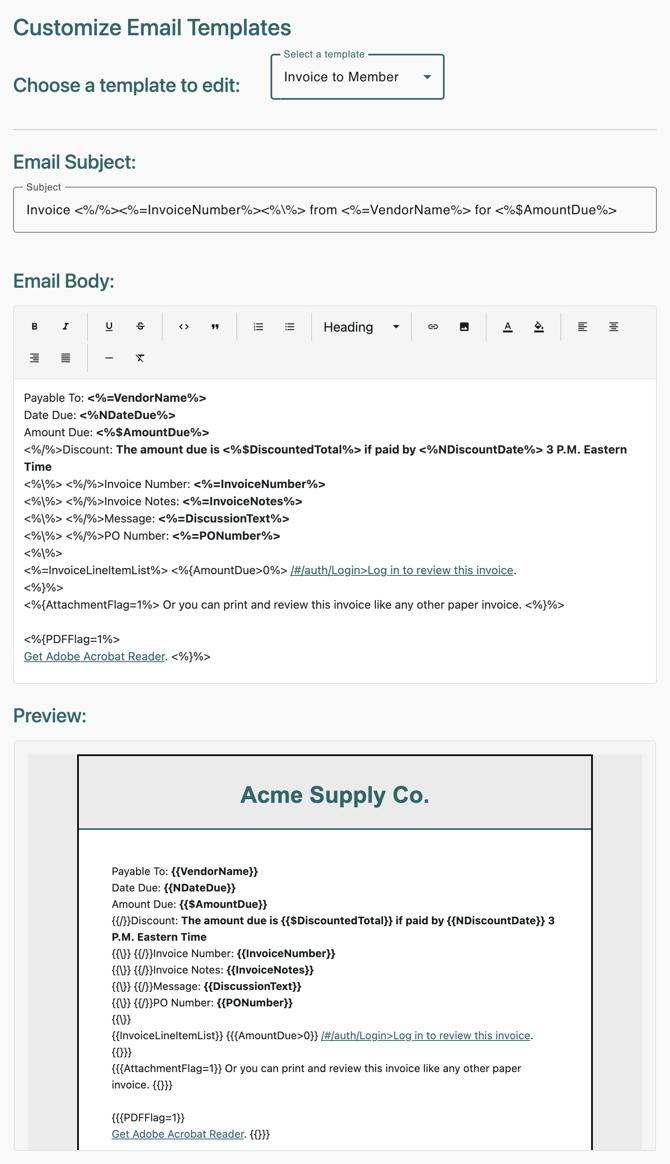
- Pick the email in Select a template. Its Email Subject and Email Body appear, with the Preview below.
- Edit the subject and body. The toolbar above the body has bold, lists, headings, links, text color and alignment.
- Check the Preview. It shows the email the way recipients see it, with your logo at the top and your color at the top and bottom. Placeholders show as names in braces, such as , not as sample values.
- Click Update Template. You'll see Template successfully updated. Emails sent from then on use your wording.
The page can't send a test email. To see a real one, send an invoice or payment to yourself.
Check the links in the Preview before you save. In the invoice and reminder emails, the sign-in link can come out broken in the editor: its text starts with /#/auth/Login>. If you see that, contact Fidesic support before saving the template.
The logo and color come from Settings → Company → Account Center. See Customize the Account Center for your Vendors/Customers.
Go back to Fidesic's wording
- Subject: clear it and click Update Template. A blank subject uses Fidesic's.
- Body: paste back the text you copied, or contact Fidesic support to restore it. A blank body sends a blank email.
Placeholders
Placeholders are the parts in <% %>. Fidesic replaces each one with the real value when it sends the email. Leave them as they are when you edit around them. The character after <% says how the value is shown:
| Written as | What it does |
|---|---|
| <%=InvoiceNumber%> | Inserts the value as text |
| <%$AmountDue%> | Inserts an amount as money, such as $1,250.00 |
| <%NDateDue%> | Inserts a date |
| <%/%> … <%\%> | An optional part. Everything between them is left out when a placeholder inside is empty, so a line like "PO Number:" disappears when the invoice has no PO number. |
| <%{AmountDue>0%> … <%}%> | A condition. The text between shows only when the condition is true, here when an amount is still due. |
Each kind of email has its own placeholders. Use only the ones for that kind: one Fidesic can't fill is sent exactly as typed.
Invoice and reminder emails
| Placeholder | Inserts |
|---|---|
| VendorName | Your company's name |
| CustName | The customer's name |
| CustomerNumber | The customer's number with you |
| InvoiceNumber | The invoice number |
| InvoiceDate, DateDue | The invoice date and due date (write them with N) |
| AmountDue | The amount still due on the invoice (write it with $) |
| DiscountedTotal, DiscountDate | The amount due if paid early, and the date it must be paid by |
| AccountBalance | Everything the customer owes you |
| InvoiceNotes | The invoice's notes |
| DiscussionText | The message you typed when you sent the invoice |
| PONumber, ShipmentTrackingNumber | The customer's PO number and the tracking number |
| InvoiceLineItemList | A table of the invoice's lines |
| DaysOverdue | How many days past due the invoice is (reminders) |
| OverdueInvoices, OverdueInvoicesCount | The list of overdue invoices, written <%^OverdueInvoices%>, and how many there are (reminders) |
Payment and bank account emails
| Placeholder | Inserts |
|---|---|
| PayerName | Your company's name (You've got money) |
| PayAmount, PaymentType | The payment amount and how it's paid (You've got money) |
| DueDate | The estimated date the money arrives (You've got money) |
| Memo | The payment memo, written <%@Memo%>, which adds "Memo:" in front (You've got money) |
| InvoiceList | The invoices the payment covers (You've got money) |
| AccountDescription, AccountType, FriendlyName, BankName | Which account changed: its description, its type, its nickname and its bank (bank account emails) |
Who the emails come from
Fidesic sends these emails from notifications@fidesic.com. If your company has authenticated its email domain, invoice and reminder emails come from the address you picked for Invoice Emails, and payment emails from the one for Payment Emails. See Send Fidesic emails from your company's domain.
Cover letters
Go to Settings → Company → Cover Letters and pick a letter under Choose a cover letter to edit. There are two. Each company has one of each, and Fidesic uses it automatically: there's nothing to assign. The page has no preview.
| Cover letter | What it's for |
|---|---|
| Invoices | The first page of each invoice or credit memo Fidesic mails to a customer: customers whose Invoice Delivery includes Mail. One letter per invoice. |
| Paper Checks | The message printed on each paper check, whether you print your checks or Fidesic prints and mails them |
Fidesic doesn't add a cover letter to emailed invoices or to statements.
The invoice cover letter
Edit the text in the editor and click Update Cover Letter. You'll see Cover letter successfully updated.
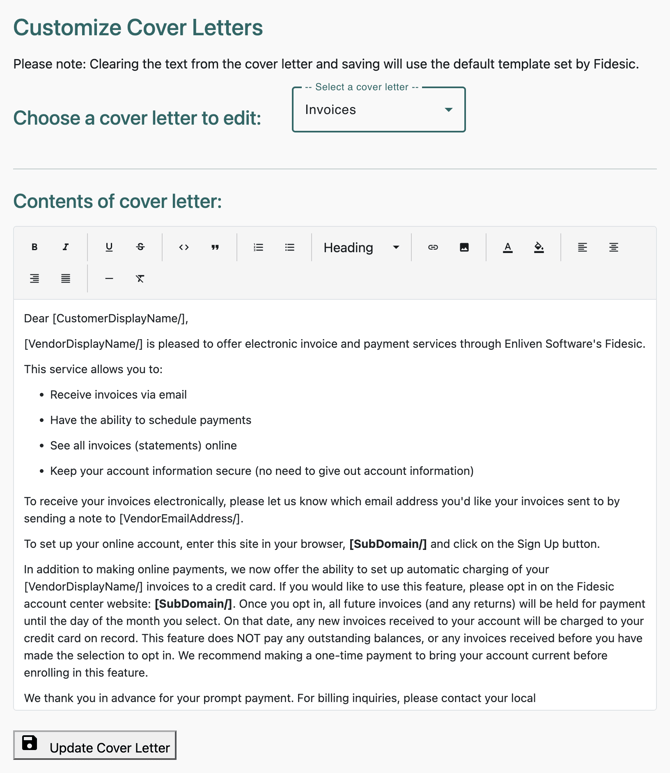
Above your text, Fidesic adds your logo at the top right, your company's name and address as the return address, the customer's name and mailing address placed to show through a window envelope, and today's date. Don't type those yourself.
Placeholders here are written in square brackets:
| Placeholder | Inserts |
|---|---|
| [CustomerDisplayName/] | The customer's name |
| [VendorDisplayName/] | Your company's name |
| [VendorEmailAddress/] | Your company's email address |
| [SubDomain/] | Your Account Center's web address |
| [InvoiceNumber/], [InvoiceDate/], [DueDate/] | The invoice number, invoice date and due date |
| [GetDate/] | Today's date |
To mail invoices without a cover letter, replace the whole letter with the word BLANK, in capitals, and save. Any letter containing BLANK in capitals is skipped, so don't use that word in a letter you want sent.
The paper check message
Type the message in the box and click Update Cover Letter. Fidesic starts it with "Dear" and the vendor's name, so don't add a greeting.
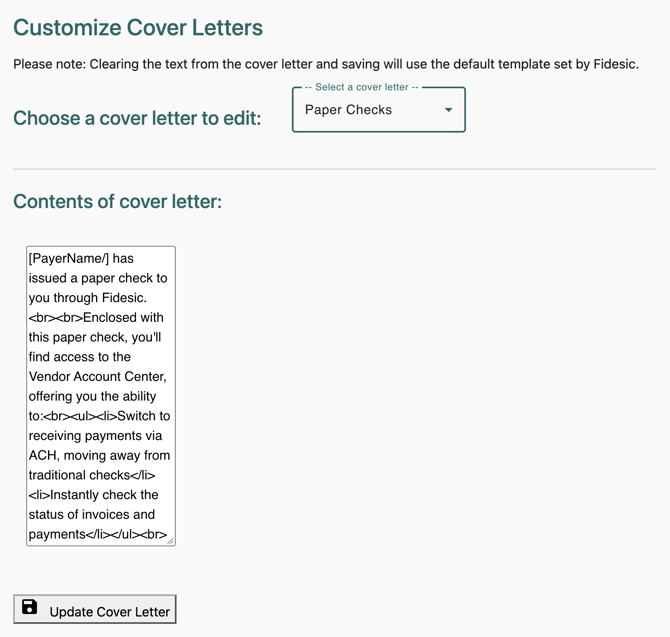
The message is plain text. The only formatting it understands is a line break: press Enter or type <br>. Other tags, such as the <ul> and <li> in the starting text, are printed exactly as typed, so take them out before you save.
| Placeholder | Inserts |
|---|---|
| [PayerName/] | Your company's name |
| [PayeeName/] | The vendor's name on the check |
| [VendorNumber/] | The vendor's ID |
| [AccountCenterURL/] | Your Vendor Account Center's web address |
| [GetDate/] | Today's date |
To go back to Fidesic's standard check message, clear the box and click Update Cover Letter.