![fidesic-logo-300px-2023-2.png]](https://help.fidesic.com/hs-fs/hubfs/fidesic-logo-300px-2023-2.png?height=40&name=fidesic-logo-300px-2023-2.png)
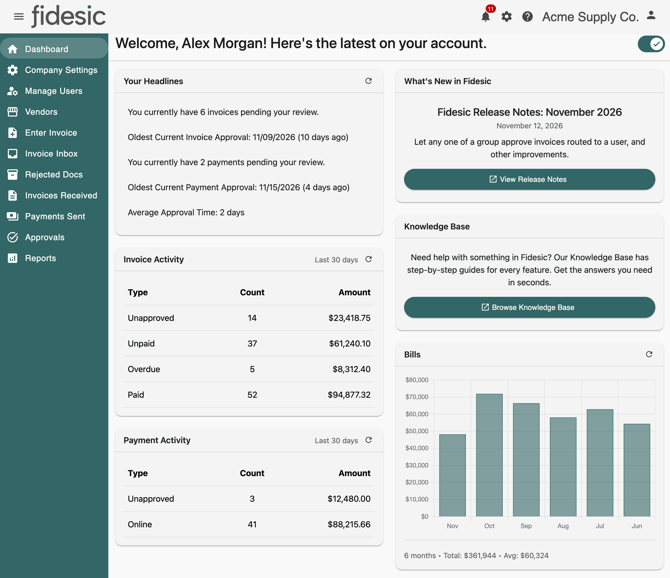
The Dashboard is the page Fidesic opens when you log in. It shows what's waiting on you and how your company's invoices and payments are moving, so you can see at a glance where to start. Click Dashboard in the menu on the left, or the Fidesic logo, to come back to it.
Why your Dashboard may look different
Each card shows only when it applies to you, so two people in the same company can see different Dashboards. What you see depends on:
- Your role. A card about approvals shows only if you can approve, and the activity cards only if you can view invoices or payments. The numbers also follow what you're allowed to see: with View All Invoices they cover the whole company, with View Assigned Location Invoices only your locations, and with View My Invoices only invoices you entered or were an approver on. Payments work the same way.
- Your company's Fidesic products. Accounts payable (AP) companies see approvals, expenses and approver cards. Accounts receivable (AR) companies see their invoices sent to customers and payments received from them.
- Whether there's anything to show. An activity, chart or approver card with nothing in it stays hidden.
Who has a Dashboard
You have a Dashboard when your role covers more than one area of Fidesic, for example payables and company administration. If your role covers just one area, such as only approving invoices, there is no Dashboard in your menu. Fidesic opens the first page in your menu instead, such as Approvals or Invoices Received. Vendors and customers who log in to an Account Center don't have a Dashboard either.
The welcome line and the switch at the top right
The top of the page greets you by name. The switch at the top right turns the detailed Dashboard on and off. Turned off, the cards are hidden and the page just says Click one of the links to the left to get started. Turn it back on to see the cards again. Fidesic remembers your choice for your login.
The cards
Every card that loads data has a refresh icon at its top right. If a card can't load, it shows Failed to load. Click to try again, and clicking the icon retries it.
| Card | What it shows | Who sees it |
|---|---|---|
| Fidesic Setup | The steps left to set up a new account. Click Setup to do a step, or Hide to take it off the list. Show More lists the rest. | New accounts, until each step is done or hidden |
| Your Headlines | How many invoices and payments are waiting for your approval, and the date of the oldest of each. Average Approval Time is how many days, on average, you took to act on invoices sent to you for approval over the last three months. Click a line to open your approvals. With nothing waiting, it says No pending approvals at this time. | AP users with Approve Invoices or Approve Payments |
| Invoice Activity | A count and total for each type of invoice. See below. | Users who can view invoices |
| Payment Activity | A count and total for each type of payment. See below. | Users who can view payments |
| Make Your Day Easier With These Additional Features! | What a paid plan adds. The account owner sees Upgrade Now; everyone else is asked to have the account owner upgrade. | Companies on a free plan |
| What's New in Fidesic | The latest release notes, with View Release Notes to read them in full. | Everyone |
| Knowledge Base | Browse Knowledge Base opens this help center. | Everyone |
| Bills | The total of invoices, by invoice date, for each of the last six months, with the current month first. For AP, invoices you've received that are in approval or approved. For AR, invoices you've sent. The line underneath gives the six-month total and the monthly average. | Users who can view invoices |
| Expenses | Your four largest GL accounts by amount, on invoices entered in the last six months. Point at a bar to see the account's description. | AP users who can view invoices |
| Pending Invoice Approvals and Pending Payment Approvals | The approvers with the most approvals waiting, each with their count and how many days their oldest one has waited. See below. | Users with Manage Users |
Invoice Activity
- Unapproved: invoices still going through approval, however long ago they arrived. AP only.
- Unpaid: approved invoices with a balance left to pay, entered in the period.
- Overdue: the unpaid invoices that are past their due date.
- Paid: invoices paid in full, with a payment in the period.
For AR companies these are the invoices you've sent to your customers. A company that has both AP and AR sees its payables here.
Payment Activity
- Unapproved: payments waiting for approval. AP only.
- Online: payments made through Fidesic in the period. For AR, the payments your customers made to you through Fidesic.
Changing the period
Both activity cards start at the last 30 days. Click Last 30 days at the top of the card, type a number of days and press Enter. Fidesic remembers the period for your login, separately for each card.
Pending Invoice Approvals and Pending Payment Approvals
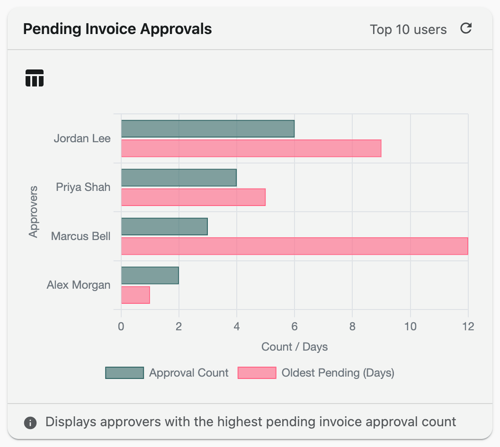
These cards help an admin spot a bottleneck, such as an approver who is out of the office. Each approver gets two bars: Approval Count and Oldest Pending (Days). Click the table icon to see the same numbers as a table, and the chart icon to go back. Click Top 10 users to show more or fewer approvers.
To move someone's approvals to another user, see How to replace an approver (Vacation or Permanently).
The Notifications bell
The bell at the top right of every page shows a red count of the approvals waiting for you plus your unread notifications. It updates about once a minute while you're logged in. Click it to open Notifications.
Approvals
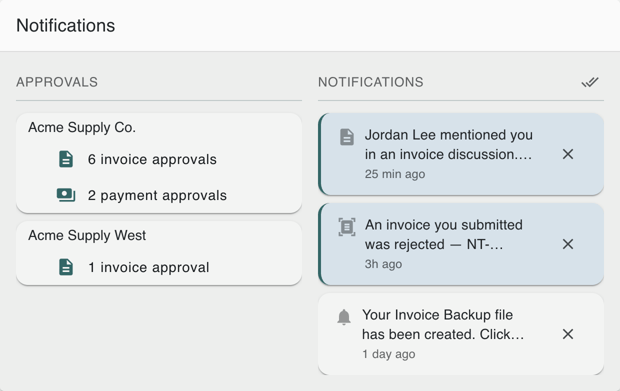
There is a card for each company you can log in to that has invoices or payments waiting for your approval, so you see them all without switching companies first. Click a line, such as 6 invoice approvals, to switch to that company and open those approvals. Clicking the company name opens its invoice approvals, or its payment approvals if it has no invoices waiting. With nothing waiting, it says No pending approvals.
For how to review and approve, see Approving Invoices using Fidesic.
Notifications
Notifications tell you about something that needs your attention, for example:
- someone tagged you in an invoice discussion
- an invoice you sent in was rejected, if you've turned that on (see Manage your profile, notifications and theme)
- a PO changed while an invoice on it was being approved
- an invoice or payment backup file you asked for is ready
Unread notifications are shaded. Click one to open what it's about, in whichever company it belongs to. Opening a notification clears it, unless your company has Keep Notifications Until Manually Cleared turned on under Settings → Company → Preferences; then it stays, marked as read, until you dismiss it. Click the X to dismiss one, or the double check mark at the top to mark them all as read and clear the list. A notification marked Action Required has no X, and opening it marks it as read without clearing it.