![fidesic-logo-300px-2023-2.png]](https://help.fidesic.com/hs-fs/hubfs/fidesic-logo-300px-2023-2.png?height=40&name=fidesic-logo-300px-2023-2.png)
When a teammate says they can't find an invoice or a page is missing, you can see Fidesic exactly as they do: their menu, their permissions and their approval queues. Nothing can be changed while you're viewing, and you stay signed in as yourself the whole time.
Who can use it
You need the Manage Users permission on your role. You can view any active, registered user in the same company, except yourself.
Start viewing as a user
- Go to Settings → Users & Permissions → Users.
- Open the user's card.
- Click View Fidesic as User.
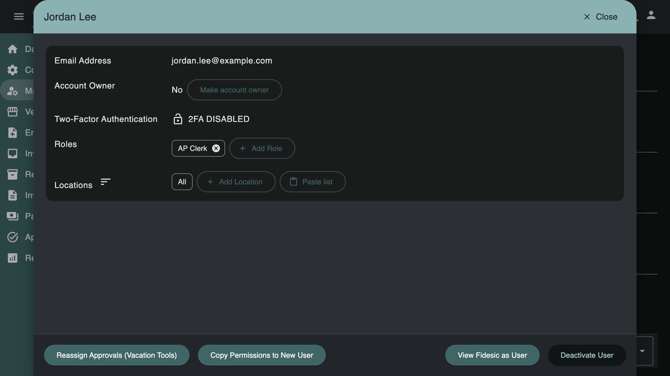
The browser tab reloads as that user. A banner under the toolbar reads Viewing Fidesic as <name> · view only. Your other browser tabs aren't affected and stay signed in as you.

If you don't see the button, the user is either inactive, hasn't finished registering, or is you.
What you can and can't do
You can go anywhere the user can go and open anything they can open: invoices, approval queues, vendors, reports and settings pages.
You can't change anything. If you click something that would save, Fidesic shows "View only: changes aren't saved while viewing as another user." and nothing is saved. Downloads, exports and report files aren't available while viewing.
Viewing doesn't leave any trace on the user's account. It doesn't mark invoices or inbox files as opened by them, and it doesn't update their last login.
If the user belongs to other companies in Fidesic, you won't see those. You only see the company you're signed in to.
Stop viewing
Click Exit in the banner. Fidesic reloads as you, on the Users page, with that user's card still open.
The view also ends on its own if you sign out or are signed out for inactivity, if the user is deactivated, or if you lose the Manage Users permission. When that happens, Fidesic tells you why and returns you to your own account.
The audit log
Every view is recorded. In Settings → Company → Audit Log, look for View As Started and View As Ended under Users. Each entry shows who did the viewing and names the user they viewed. See Using the Audit Log Page for more on the audit log.
