![fidesic-logo-300px-2023-2.png]](https://help.fidesic.com/hs-fs/hubfs/fidesic-logo-300px-2023-2.png?height=40&name=fidesic-logo-300px-2023-2.png)
What Are Dimensions?
Dimensions are an additional layer of reporting detail applied to a transaction beyond the GL account itself. Instead of relying on long, segmented GL codes to capture every reporting need, dimensions let you attach categorical detail (like which fund, project, or department a cost belongs to) directly to a transaction line.
A single GL distribution might look like this with dimensions applied:
| GL Code | Description | FUND | DEPARTMENT | Amount |
|---|---|---|---|---|
| 6100-2000 | Office Supplies | GENERAL | ADMIN | $1,250.00 |
In Dynamics GP, this is managed through the Analytical Accounting (AA) module. In Business Central, this is handled through standard BC Dimensions.
How Dimensions Sync to Fidesic
Dimension codes are pulled into Fidesic automatically through the Fidesic Vendor Sync module — the same service that syncs your vendor list and chart of accounts. No separate sync configuration is required.
If Vendor Sync is already installed and running in your environment, your dimension codes are already being captured. If you haven't yet installed Vendor Sync, see the Installing Fidesic Vendor Sync guide first.
What gets synced:
- All active transaction dimensions (FUND, DEPARTMENT, etc. for GP / Global and Shortcut Dimensions for BC)
- All active dimension codes within each dimension
- The relationship between dimensions and the GL accounts that use them (via Accounting Class linkage in GP)
Sync frequency: Vendor Sync runs continuously in the background and picks up new dimension codes, deactivations, and changes automatically — typically within a few minutes of any change being saved in GP or BC.
Enabling Dimensions in Fidesic
Once Vendor Sync is running, you need to enable the Dimensions feature at the company level in Fidesic for the codes to be visible during invoice coding.
To enable dimensions:
- In Fidesic, navigate to Company Settings
- Locate the GL and Dimension Settings section
- Toggle Use Dimensions (BC-style or Analytical Accounting) to ON
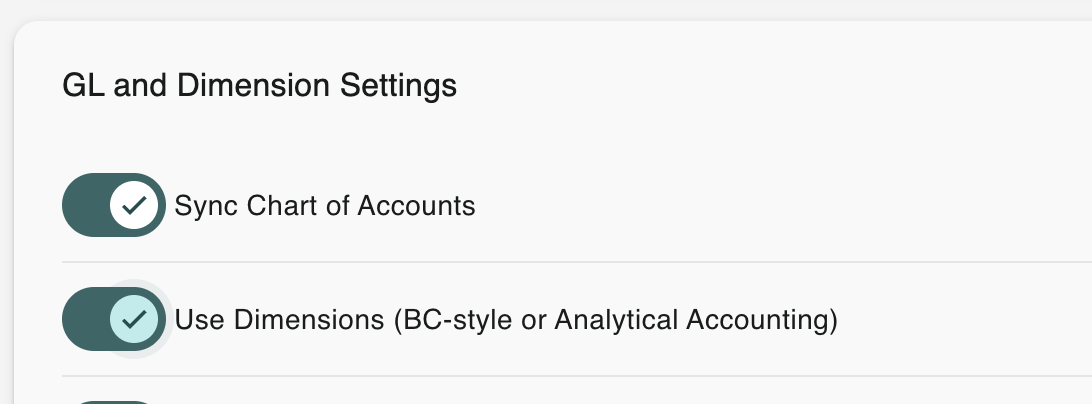
Once enabled, dimension fields will appear on invoice line items throughout Fidesic — in the coding interface, in approval views, and on the exported invoice payload sent to GP or BC.
Note: The Sync Chart of Accounts toggle in the same section must also be enabled for GL accounts to be available alongside your dimensions.
How Dimensions Work in Invoice Coding
When dimensions are enabled, each GL distribution line on an invoice will include selectable fields for each configured dimension. The behavior depends on how your dimensions are set up in your accounting system:
For Dynamics GP (Analytical Accounting)
Fidesic respects the Analysis Type configured on each dimension in your GP Accounting Class setup:
- Required — the dimension must have a code selected before the invoice can be approved or exported
- Optional — the dimension can be left blank; if a default code is configured, it will auto-populate
- Fixed — the dimension is locked to a specific code and cannot be changed
- Not Allowed — the dimension will not appear for accounts in this Accounting Class
Dimensions only appear on lines whose GL account is linked to an Accounting Class that uses those dimensions. If you code a line to an account that isn't part of any Accounting Class, no dimension fields will appear for that line.
For Dynamics 365 Business Central
Fidesic surfaces Global Dimensions and Shortcut Dimensions that have been configured in your BC environment. Default dimension values configured at the GL account or vendor level in BC will be automatically applied to the line during coding.
Best Practices
Keep dimension setups clean in your accounting system. Since Fidesic mirrors what's in GP or BC, the cleanliness of your dimension setup directly affects your AP coding experience. Deactivate codes you no longer use, rather than leaving them in place but unused.
Configure default codes where possible. In GP's Accounting Class setup, assigning a default Trx Dimension Code for "Optional" dimensions means coders don't have to manually pick a value every time — Fidesic will respect the default during export.
Use Accounting Class linkage strategically in GP. Only link the GL accounts that genuinely need a given dimension. Over-linking creates unnecessary required fields and slows down coders.
Train approvers on dimension visibility. Approvers will see dimension codes on invoice lines just like coders do. Make sure they understand what each dimension represents so they can validate the coding accurately.
Common Setup Items to Verify
If dimensions aren't showing up as expected in Fidesic after enabling them, check the following in order:
- Vendor Sync is installed and running — check the service status on the machine where it's installed
- Vendor Sync has Chart of Accounts sync enabled — required for dimension data to flow through
- The "Use Dimensions" toggle is enabled in Fidesic Company Settings
- The GL account on the invoice line is linked to an Accounting Class (GP) or has dimensions configured (BC) — dimensions are scoped per account, not global
- The dimension codes you expect to see are active in your accounting system