![fidesic-logo-300px-2023-2.png]](https://help.fidesic.com/hs-fs/hubfs/fidesic-logo-300px-2023-2.png?height=40&name=fidesic-logo-300px-2023-2.png)
If you bill your customers through Fidesic, three pages in the menu show you where every invoice and payment stands:
- Customers: who you bill, and what each customer owes.
- Invoices Sent: every invoice, credit memo and other document you've sent, with its status.
- Payments Received: every payment your customers have made or scheduled.
This article explains what each page shows and how to do the everyday tasks: find an invoice, check whether a customer has paid, resend an invoice, export a list, and void a payment.
Who can use these pages
The menu shows Customers, Invoices Sent and Payments Received to anyone whose role has at least one of the Customer permissions. What each person can do on them depends on which ones they have:
| Permission | Lets the user |
|---|---|
| View Customer List | See the customer list, open a customer, see Payments Received, and open a customer's Account Center as they see it. |
| Manage Customers and Send Invoices | See Invoices Sent; add, edit, deactivate and export customers; resend, void and mark invoices paid; and void payments received. |
| Discuss Customer Invoices | Shows the menu items. On its own it doesn't open any of the lists. |
Most AR users need both View Customer List and Manage Customers and Send Invoices. An admin sets these under Settings → Users & Permissions → Roles.
Customers
Click Customers in the menu. The list shows each customer's Customer Number, Customer Name and Balance, the amount they owe you in Fidesic.
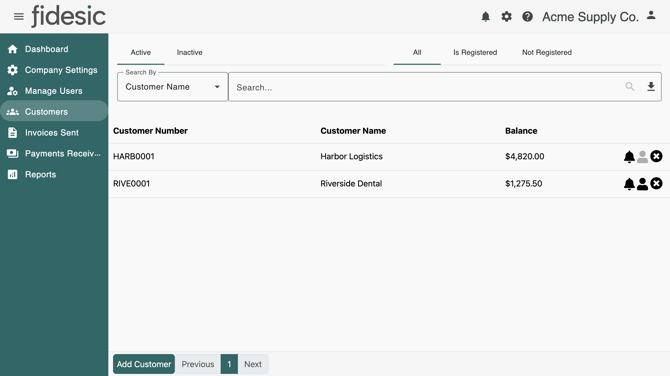
- Active and Inactive switch between current customers and ones that have been deactivated.
- All, Is Registered and Not Registered filter by whether the customer has signed up for their Customer Account Center login.
- Search By searches by Customer Name, Customer Number or Email Address.
The icons at the end of each row show whether payment reminders are on for that customer (the bell) and whether they have registered (the person icon). Hover over either for a description. The X deactivates a customer. On the Inactive tab, the arrow reactivates one. Add Customer, at the bottom of the list, creates a customer by hand. Most customers are created automatically when you send their first invoice from your accounting software.
A customer's details
Click a customer to open them. Three tabs show:
- Customer Details: their contact details, how invoices are delivered, and payment reminders. The buttons at the bottom open this customer's Invoices Sent and Payments Received, and Customer View opens their Account Center in a new tab, as the customer sees it.
- Payment Accounts: the bank accounts and cards the customer has saved, and whether they are signed up for auto-charge.
- Open Transactions: their Unpaid Invoices with the current balance of each, plus any Unapplied Payments and Unapplied Credits.
Customers whose details come from your accounting software should be edited there. Changes made in Fidesic are overwritten the next time that software sends the customer.
Invoices Sent
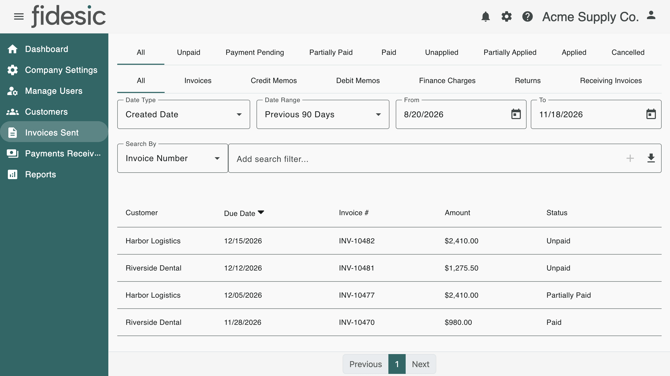
Click Invoices Sent in the menu. The list shows the Customer, Due Date, Invoice #, Amount and Status of each document. Click a column heading to sort by it.
Filtering the list
- The top row of tabs filters by status (see the table below).
- The second row filters by document type: Invoices, Credit Memos, Debit Memos, Finance Charges, Returns or Receiving Invoices.
- Date Type and Date Range limit the list by Created Date, Invoice Date or Due Date. The list starts at Previous 90 Days of created date. Choose All Time, or Custom to enter your own From and To dates.
- Search By searches by Invoice Number, Amount, Customer Name or Email Address. Each search you add stacks on the ones before it and shows as a chip under the box. Remove a chip to drop that filter, or click Clear All Filters.
Invoice statuses
| Status | Means |
|---|---|
| Unpaid | Nothing has been paid on it yet. |
| Partially Paid | The customer has paid part of it, and a balance is still owed. |
| Paid | It has been paid in full, through Fidesic or by being marked as paid. |
| Unapplied | A credit memo or return that hasn't been applied to any invoice yet. |
| Partially Applied | A credit memo or return that has been applied to invoices for part of its amount. |
| Applied | A credit memo or return that has been applied in full. |
| Cancelled | The document was voided, so the customer no longer owes it. |
What you can do from an invoice
Click an invoice to open it. Depending on its status and your permissions, you'll see:
- Resend Invoice emails the invoice to the customer again. You can add an optional note, then click Resend.
- Send Message sends the customer a message about this invoice. It shows once the customer has registered.
- Mark as Paid records an unpaid or partially paid invoice as paid, for example when the customer paid you outside Fidesic. No money moves.
- Void cancels an unpaid invoice, or an unapplied credit memo or return. You'll be asked for Void Notes, which your company may require. If your company voided it, Unvoid brings it back.
Payments Received
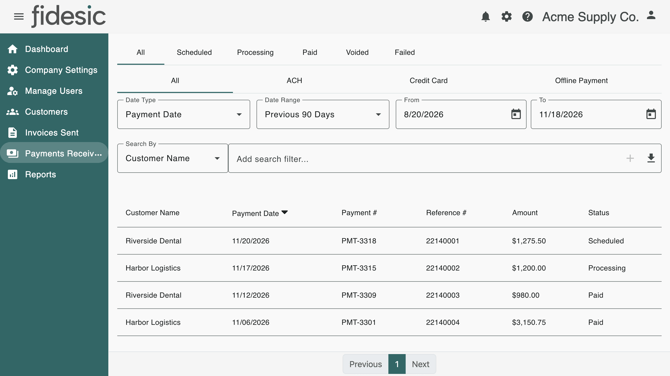
Click Payments Received in the menu. The list shows the Customer Name, Payment Date, Payment #, Reference #, Amount and Status of each payment.
Filtering the list
- The top row of tabs filters by status (see the table below).
- The second row filters by how the customer paid: ACH, Credit Card, or Offline Payment for payments made outside Fidesic, such as checks, that were recorded in Fidesic.
- Date Type limits the list by Payment Date, Created Date or Funded Date, the date the money reached your account. The list starts at Previous 90 Days of payment date.
- Search By searches by Customer Name, Payment Number, Reference Number or Amount. Searches stack the same way as on Invoices Sent.
Payment statuses
| Status | Means |
|---|---|
| Scheduled | The customer has scheduled the payment for a later date, and it hasn't started processing. |
| Processing | The payment is on its way to your account. |
| Paid | The payment has been made. |
| Voided | The payment was cancelled, by you or by the customer. |
| Failed | The payment didn't go through. |
If a payment's date isn't what you expected, see How we decide the processing date for payments.
Click a payment to open it. Its Details tab shows the invoices it paid, and its History tab shows what has happened to it.
Common tasks
Find an invoice
- Click Invoices Sent.
- Under Search By, choose Invoice Number, type the number and press Enter.
- If nothing comes up, set Date Range to All Time. The list only covers the last 90 days to start with.
See whether a customer has paid
- For one invoice, find it in Invoices Sent and check its status: Unpaid, Partially Paid or Paid.
- For everything a customer owes, open them from Customers and go to Open Transactions.
- For the payments themselves, open Payments Received and search by Customer Name. A payment that is Scheduled or Processing hasn't reached you yet.
Resend an invoice
- Find the invoice in Invoices Sent and click it.
- Click Resend Invoice, add a note if you like, and click Resend. The customer gets the invoice by email again.
Export a list
On Customers, Invoices Sent or Payments Received, set the tabs, dates and searches you want, then click the download icon at the right of the search box. The list downloads as an Excel file with the same filters applied. Very large lists are cut off at a maximum number of rows, shown when you hover over the icon.
Void a customer payment
You need Manage Customers and Send Invoices to void a payment you received.
- Click Payments Received, find the payment and click it.
- Click Void.
- Enter Void Notes if you want to record why, and click Void.
Fidesic asks the payment processor to cancel the payment. If the processor won't, usually because the money has already moved, Fidesic shows Void in Fidesic Only? with the processor's reason:
- Void in Fidesic Only marks the payment voided in Fidesic. It does not return the money to the customer. Any refund has to be made outside Fidesic.
- Back leaves the payment as it was.
You can't void a payment while you're looking at a customer's Account Center through Customer View. Only offline payments can be unvoided afterwards.
Your customers can also cancel a payment they've just made from their own Account Center. See Void a Payment.