![fidesic-logo-300px-2023-2.png]](https://help.fidesic.com/hs-fs/hubfs/fidesic-logo-300px-2023-2.png?height=40&name=fidesic-logo-300px-2023-2.png)
How do I reset a payment receipt batch in Fidesic?
If you accidentally delete a batch of payment receipts after exporting them from Fidesic to GP, you can reset the entire batch and re-export it to GP. Follow the steps below.
Steps to reset a payment batch
- Log in to Fidesic.
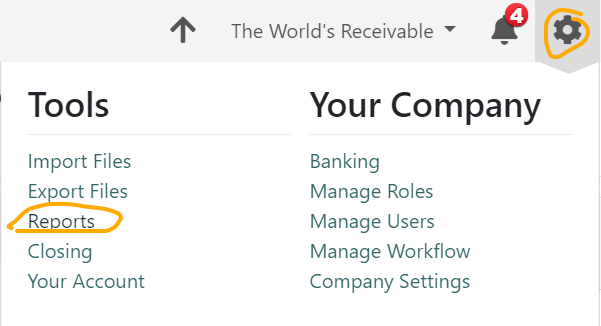
- Click Settings > Reports.
- Select Imported Payments from the drop-down menu.

- Optional: Check the box next to a batch, scroll to the bottom of the page, and click Run Report to review the batch contents before resetting it.

- Click Reset Batch on any batch you want to make available for re-export to GP.

- Navigate to the standard GP export workflow in Fidesic and re-export the batch to GP as you normally would.