![fidesic-logo-300px-2023-2.png]](https://help.fidesic.com/hs-fs/hubfs/fidesic-logo-300px-2023-2.png?height=40&name=fidesic-logo-300px-2023-2.png)
At month-end, some invoices are still waiting for approval in Fidesic, so they haven't reached your accounting system yet. The Accruals report lists those invoices as of the end of the period, with one row for each GL account line, so you can book an accrual for the expense.
Who can use this: users whose role has View Admin Reports, at companies that use Fidesic AP. If your company has Run Reports by Location on, the role also needs Run Accruals Report. Roles are set under Settings → Users & Permissions → Roles.
For a quick look at every report on the Reports page, see Fidesic reports: what each one shows.
Running the report
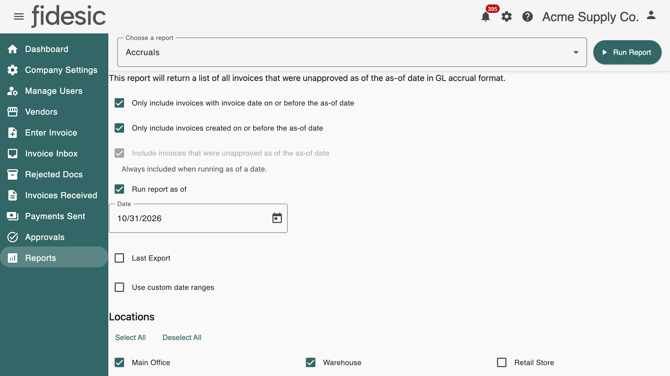
- Go to gear menu → File operations → Closing. This opens the Reports page with Accruals already chosen. You can also pick Accruals from the Payables group under Choose a report.
- Choose your options. They're explained below. With no changes, the report closes the month that just ended.
- Click Run Report. You see Generating report..., then File should download shortly, and the Excel workbook downloads.
If no invoices match, you see No matching results were found to export. Reports can't be downloaded while you're viewing Fidesic as another user.
Which invoices are included
The report includes invoices that were waiting for approval at the cutoff. It leaves out invoices that were approved, rejected or voided by then, and invoices that haven't been sent for approval yet.
The cutoff and the posting date
- With no as-of date, the cutoff is midnight at the start of the 1st of the current month, so the report closes the month that just ended. The Date in the workbook is the last day of that month. Run on November 3, it closes October and is dated 10/31.
- With Run report as of, the cutoff is the end of the day you pick, and that day is the Date in the workbook.
- With Last Export, the cutoff is the moment your most recent invoice batch was exported to your accounting system, and the Date is the day of that export.
Days are read in your company's time zone, which is Eastern Time unless an admin has changed it. See Set your company's time zone.
Options
The option labels name the cutoff: they say the first of the month, or the as-of date once you tick Run report as of.
| Option | What it does |
|---|---|
| Only include invoices with invoice date on or before the cutoff | On to start with. Leaves out invoices dated after the cutoff. Without an as-of date this means on or before the 1st, so invoices dated the 1st of the new month are included too. Untick it to include invoices whatever their date. |
| Only include invoices created on or before the cutoff | Leaves out invoices entered in Fidesic after the cutoff. Without an as-of date, an invoice must have been entered by the end of the last day of the month. Leave this off if you want to accrue invoices for the month that arrived after it ended. |
| Include invoices that were unapproved as of the cutoff | Rebuilds the approval queue as it stood at the cutoff: it adds back invoices approved since then, as long as they were entered before it. Without it, the report lists only invoices still waiting for approval right now, so anything approved after month-end drops out. Tick it when you run the report a few days after the month ends. It's always on, and greyed out, when you run as of a date. |
| Run report as of and Date | Closes through the end of the date you pick instead of the end of last month. Use it to run the close on the last day of the month, or to re-create an earlier period. |
| Last Export | Appears under Run report as of. Uses the time of your most recent invoice export to your accounting system as the cutoff, instead of a date. Use it when your close is the last export of the month. |
| Use custom date ranges, From and To | Limits the report to invoice dates from From to To, both days included, on top of the other options. Both dates start as today, so set both. |
| Locations | Only shown when your company runs reports by location. Tick the locations to include, or use Select All and Deselect All. You see the locations you're assigned to, or every location if you have none assigned. With no location ticked, the report covers all locations. Either way, the workbook gets a Location column. |
What's in the workbook
The file is named after your company, for example Acme Supply Co. Accrual - 10/31/2026.xlsx. It has one sheet, with one row for each GL account line. An invoice coded to three accounts gives three rows.

| Column | What it holds |
|---|---|
| Batch | Blank, for you to fill in if your import needs it. |
| TransactionNumber | Always 1. Every row belongs to the same journal entry. |
| Date | The posting date: the last day of the month closed, the as-of date, or the day of the last export. |
| Account | The GL account on the line. |
| Amount | The line's amount. Rows whose InvoiceType isn't Invoice show it in parentheses, as a negative. |
| MainReference | The account's first segment followed by - Monthly AP, for example 6100 - Monthly AP. |
| LineReference | The vendor's name and vendor ID, for example Northwind Traders / NORTH01. |
| InvoiceNumber | The vendor's invoice number. |
| Sequence | The row number: 1, 2, 3 and so on. |
| InvoiceDate, DueDate | From the invoice. |
| CreatedDate | The day the invoice was entered in Fidesic, in your company's time zone. |
| Notes, Description | The invoice's notes and description. |
| InvoiceType | Invoice, Credit Memo, Return, Debit Memo and so on. |
| One column per dimension | Only if your company uses Business Central-style dimensions. Each holds the line's value for that dimension. |
| Location | Only if your company runs reports by location. |
Getting it into your accounting system
The workbook is the only output. Fidesic doesn't post the accrual, and the Dynamics GP, Business Central and QuickBooks integrations don't pick it up. Bring it in yourself:
- Check the Amount column. It comes through as text, so convert it to numbers before you total it. In Excel, select the column and use Data → Text to Columns → Finish, which also turns amounts in parentheses into negatives.
- Check the sign of anything that isn't a plain invoice. Credit memos and returns are correctly negative, but debit memos and finance charges are shown in parentheses too, so flip them to positive.
- Look for rows with a blank Account and an Amount of 0.00. Those invoices haven't been coded yet. Code them in Fidesic and run the report again, or estimate them yourself.
- The rows are the expense side of the entry. Add the offsetting credit to your accrued liabilities account for the total.
- Import the rows through your accounting system's general journal import, or key a summarized entry by account. Most teams post it as a reversing entry dated the last day of the month, reversing on the 1st.
Approved invoices that haven't been imported yet aren't in this report, because they're no longer waiting for approval. To accrue those too, run Invoices Awaiting Import with Use Accrual Format, which gives the same layout.
Things to know
- Running on the last day of the month closes the month before. Without an as-of date, the report always closes the month that has already ended. To close the current month on its last day, tick Run report as of and pick that day.
- Editing an invoice after the cutoff can drop it from a rebuilt queue. When the report rebuilds the queue (with Include invoices that were unapproved as of, or with an as-of date), Fidesic uses the last time each invoice was saved or changed status. An invoice still waiting for approval that someone edited and saved after the cutoff is left out. An invoice approved, reopened and approved again after the cutoff is counted as unapproved at the cutoff. For the most accurate list, run the report right after the month ends.
- Rejected invoices are never accrued.
Reset Invoice Dates
Some companies also see a Reset Invoice Dates section at the bottom of the Closing page. Fidesic support turns it on, and using it needs Adjust Approved Invoices on your role. Once you've accrued last month's open invoices, it moves their invoice dates into the new month, so they post to the open period when you import them.

- Pick the Reset Date, usually the 1st of the new month. It can't be in the future.
- Click Reset Invoice Dates, then Yes in Confirm Invoice Date Reset.
Every open invoice (waiting for approval, unconfirmed or approved) that hasn't been imported into your accounting system and is dated before the Reset Date gets the Reset Date as its invoice date. The page says "dated after the selected date", but it's invoices dated before it that change. This can't be undone, so run and save the Accruals report first.