![fidesic-logo-300px-2023-2.png]](https://help.fidesic.com/hs-fs/hubfs/fidesic-logo-300px-2023-2.png?height=40&name=fidesic-logo-300px-2023-2.png)
The Reports page gathers Fidesic's reports in one place. Use this guide to pick the report that answers your question, such as which invoices to accrue at month-end, which invoices are stuck in approval, or what went into an import, and to see who in your company can run it.
Open the Reports page and run a report
- Click Reports in the menu. You can also open it from the gear menu, under File operations.
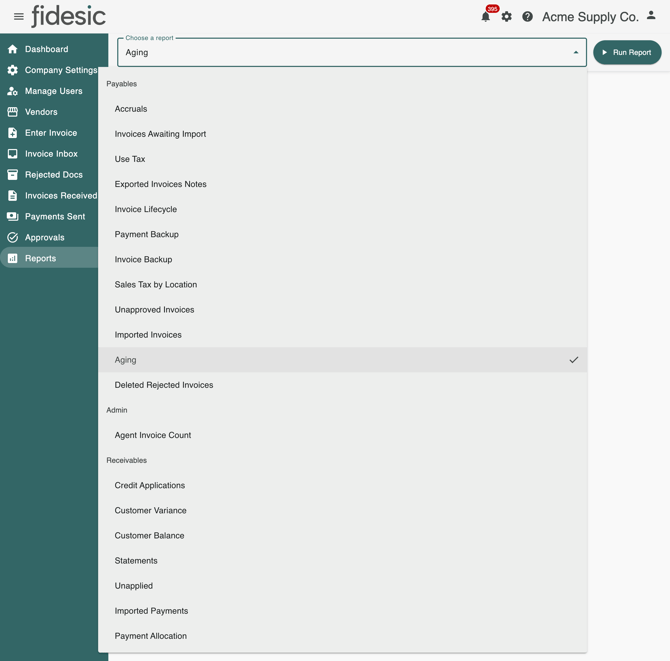
- Pick a report from Choose a report. The reports are grouped under Payables, Admin and Receivables.
- Set the report's options, which appear below the list.
- Click Run Report. Fidesic shows Generating report... and then downloads an Excel workbook (.xlsx) named with your company, the report and the date.
A few reports work differently, and their sections below say how: Imported Invoices, Imported Payments and Credit Applications list batches on the page for you to choose from, Statements sets a schedule rather than downloading a file, and the backup reports email you when the backup is ready.
Who can open the Reports page
You need View Admin Reports or View Vendor Reports on your role. Roles are set under Settings → Users & Permissions → Roles. You only see the reports your role and your company's settings allow, so your list may be shorter than the one above.
- View Admin Reports opens the company-wide reports.
- View Vendor Reports opens the page with the basic reports only: Imported Invoices if you also have Enter Invoices, and Aging if you also have View All Invoices.
Reports can't be downloaded while you're viewing Fidesic as another user.
Payables
These reports appear when your company uses Fidesic AP.
Accruals
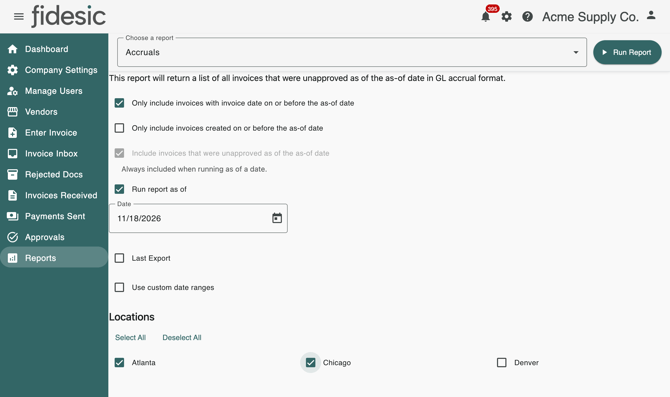
Which invoices were still waiting for approval at month-end, laid out as GL accrual entries you can bring into your accounting system. By default it closes the month that just ended: invoices unapproved as of the first of this month, posted on the last day of last month. Credit memos show as negative amounts.
- Options: Only include invoices with invoice date on or before the cutoff, Only include invoices created on or before the cutoff, and Include invoices that were unapproved as of the cutoff, which adds back invoices approved since then. Tick Run report as of to close a different date, either a Date you pick or your Last Export. Tick Use custom date ranges to limit invoice dates to a From and To. If your company runs reports by location, pick the Locations to include.
- Who sees it: View Admin Reports. If your company has Run Reports by Location on, the role also needs Run Accruals Report. Gear menu → File operations → Closing opens this report directly. For a step-by-step guide, see Run the Accruals report for month-end close.
Invoices Awaiting Import
Which approved invoices haven't been imported into your accounting system yet.
- Options: Use Accrual Format lays the invoices out as GL accrual entries, like the Accruals report. Include Unapproved Invoices adds invoices still in approval. If your company runs reports by location, choose the locations under Select Locations.
- Who sees it: View Admin Reports. With Run Reports by Location on, the role also needs Run Awaiting Import Report.
Use Tax
Which invoices were coded to the GL accounts you name, so you can work out the use tax you owe on them. It covers invoices that are awaiting approval or approved.
- Options: enter account segment values in Segments 1, Segments 2 and Segments 3, separated by commas, spaces or new lines. Choose which Date to filter on (Invoice Date or Created Date) and a Range, or set From and To. Once you have saved reports, pick one from Choose an existing report to run, and use Save Report to keep the current criteria under a name.
- Who sees it: View Admin Reports, at companies where Fidesic support has turned on use tax tracking.
Exported Invoices Notes
What notes were written on your approved invoices, with each invoice's vendor and PO number.
- Options: From and To invoice dates.
- Who sees it: View Admin Reports, at companies where Fidesic support has turned on invoice comments.
Invoice Lifecycle
How long each invoice spent with each approver, and when it was synced to your accounting system. For every approval step, up to eight, it shows the approver, when the invoice was assigned to them, when they approved it and the time in between. This report used to be called Invoice Status By User.
- Options: Select a start date. The report covers invoices created on or after that date that are awaiting approval or approved. The date can't be in the future.
- Who sees it: View Admin Reports.
Payment Backup and Invoice Backup
A copy of your payments with their paper checks, or your invoices with their attachments, for a date range. You get a spreadsheet right away, and an email when the full backup is ready to download. See Create a backup of invoices and payments for the steps.
- Who sees them: View Admin Reports.
Sales Tax by Location
How much of each invoice was payables and how much was sales tax, split by location, and which invoices were charged no tax. See Run the Sales Tax by Location report for its options and columns.
- Who sees it: View Admin Reports.
Unapproved Invoices
Which invoices are waiting on approval, who each one is waiting on, and when it was created, so you can see how long it has waited. The list is sorted by current approver.
- Options: GL Code Per Line gives each GL line of an invoice its own row with its amount. Leave it unticked for one row per invoice.
- Who sees it: View Admin Reports and Manage Users.
Imported Invoices
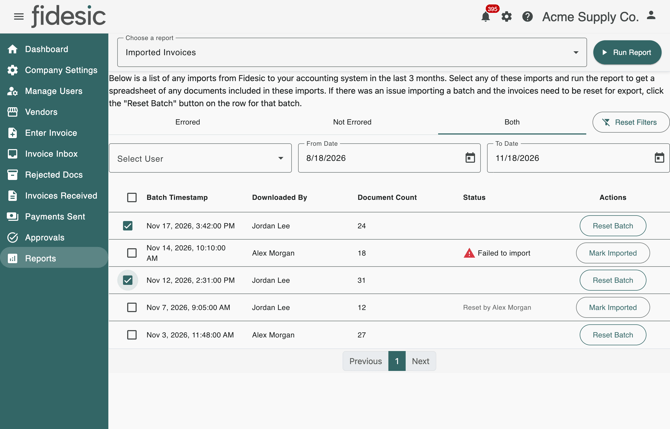
What went into each import from Fidesic to your accounting system in the last three months, and which imports failed. Unlike most reports, it lists the import batches on the page, with Batch Timestamp, Downloaded By and Document Count.
- Narrow the list with From Date and To Date. Dynamics GP companies can also pick a user under Select User and choose Errored, Not Errored or Both. Reset Filters goes back to the last three months.
- Tick the batches you want.
- Click Run Report. For Dynamics GP and Business Central, you get a spreadsheet of the invoices in those batches, with vendor, amounts, dates, location, notes, terms and GL codes. For other accounting systems, the batches' export file downloads again.
For Dynamics GP and Business Central, the list also has Status and Actions. A batch that didn't import shows Failed to import. Reset Batch sets a batch's invoices to export again, and Mark Imported marks a reset or failed batch as imported after all.
- Who sees it: Enter Invoices, with either View Admin Reports or View Vendor Reports to open the page.
Aging
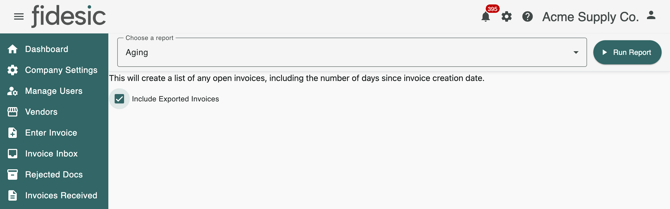
Which invoices are still open, and how many days each has been open since it was created. Paid, voided and applied invoices are left out. Each row has the invoice's status, dates, amount, terms and GL code, plus its PO number if your company shows PO numbers in lists.
- Options: Include Exported Invoices. Untick it to see only open invoices that haven't been exported to your accounting system yet.
- Who sees it: View All Invoices, with either View Admin Reports or View Vendor Reports to open the page.
Deleted Rejected Invoices
Which files were deleted from the rejected queue, why they were rejected, and who deleted them and when.
- Options: From and To dates. Fidesic keeps rejected documents for 180 days, so From can't be earlier than that.
- Who sees it: anyone with an Invoice Inbox permission: View All Inbox Files, View Inbox Files Assigned to Me, View Unassigned Inbox Files or View Location Inbox Files.
Admin
Agent Invoice Count
How many invoices each user created, month by month.
- Options: From and To months.
- Who sees it: View Admin Reports and Manage Users, at companies that use Fidesic AP.
Receivables
These reports appear when your company uses Fidesic AR.
Credit Applications
Which open credits customers applied to which invoices, with the customer number and amount. Run it as is for the current list, or tick batches under Previous Batches to get the credits from those batches.
- Who sees it: anyone who can open the Reports page, at companies with Allow Customers to Apply Open Credits to Invoices on, under Settings → Company → Preferences → Accounts Receivable.
Customer Variance
Which customers have a different balance in your accounting system than in Fidesic, and by how much. If none do, Fidesic says You have no variance to report! instead of downloading a file.
Customer Balance
Every customer's balance in your accounting system and in Fidesic, side by side, with the difference.
Both balance reports run without any upload, but they are most accurate when you first upload a balance export from your accounting system. Click Upload Excel Balance Export on the report to do that.
Statements
When Fidesic generates your customer statements. This one doesn't download a file: Run Report saves the schedule, and the new schedule replaces any earlier one.
- Options: Choose interval to run: Once (pick a day), Daily, Weekly (pick a day of the week) or Monthly (pick a day from 1 to 28), and Select the time of day to run, in Eastern time. Never stops scheduled statements.
Unapplied
Which credits, returns and customer payments haven't been applied to invoices yet, and how much of each is left.
Imported Payments
What went into each customer payment batch imported from Fidesic into Dynamics GP in the last year. The page lists the batches with Batch Timestamp, Document Count and Batch Total. Tick the batches you want and click Run Report for a spreadsheet of their payments. If a batch didn't import, Reset Batch sets its payments to export again.
- Who sees it: Manage Customers and Send Invoices.
Payment Allocation
Which invoices each customer payment paid, for payments in a date range, with the customer's number and class.
- Options: From and To dates.
- Who sees it: Manage Customers and Send Invoices.
Unless a Receivables report says otherwise, anyone who can open the Reports page can run it.
Reports by location
If your company uses locations, it can turn on Run Reports by Location under Settings → Company → Preferences → GL and Dimension Settings. Users assigned to locations then run the Accruals, Invoices Awaiting Import and Sales Tax by Location reports for their own locations only, and those reports gain a Location column.