![fidesic-logo-300px-2023-2.png]](https://help.fidesic.com/hs-fs/hubfs/fidesic-logo-300px-2023-2.png?height=40&name=fidesic-logo-300px-2023-2.png)
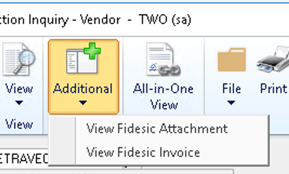
Two menu items are available, and both act on the document you have selected:
| Menu item | Opens |
|---|---|
| View Fidesic Attachment | The attached document itself — the scanned or emailed invoice file. |
| View Fidesic Invoice | The invoice record in Fidesic, with its coding, approval history and status. |
Use View Fidesic Attachment to read what the vendor sent. Use View Fidesic Invoice to see how the invoice was handled — who approved it, how it was coded, where it stands.
Where to find them
Open any of the windows below, select the document you want, then choose Additional > View Fidesic Attachment or Additional > View Fidesic Invoice from the menu bar.
Payables
- Payables Transaction Entry
- Payables Transaction Entry Zoom
- Payables Transaction Inquiry - Vendor
- Payables Transaction Inquiry - Document
Purchasing
- Receivings Transaction Entry
- Receivings Transaction Inquiry Zoom
- Purchasing Invoice Entry
- Purchasing Invoice Inquiry Zoom
Either item opens in your web browser. If you are not already signed in to Fidesic, you will be asked to sign in first.
Tip: On the inquiry windows, the menu acts on the row you have selected in the scrolling list, not on the vendor as a whole. Select the invoice row before choosing the menu item.
If the menu item is missing
The Additional menu has no Fidesic entries at all. The Fidesic AP integration is switched off for this company. Check Fidesic Company Options, or contact your system administrator.
The Additional menu is missing entirely. You are on a window that is not in the list above. Not every GP window can reach a Fidesic document.
If you see “This document does not have a Fidesic attachment”
Either menu item can show this. It means GP could not identify an invoice to look up. The usual causes:
The document is not an invoice. Payments, credit memos, returns and finance charges have no Fidesic attachment. Only invoices do.
The transaction has not been saved yet. A new transaction you are still keying has no document number or vendor to look up. Save it first.
The voucher was not created by Fidesic. Vouchers keyed directly into GP have no Fidesic document behind them.
If the browser opens but no document is found
The link identifies the invoice by invoice number and vendor, not by a direct document ID. If either value was edited in GP after the voucher was created, it will no longer match what Fidesic holds.
If you have access to more than one Fidesic account, and the same invoice number and vendor exist in several of them, Fidesic will ask which account you mean rather than guessing.
Older links stored in notes
Before this feature existed, Fidesic wrote a link into the GP note attached to each voucher. Those notes are still there and those links still work — you do not need to update them.
You can open a note-based link by copying it out of the note field and pasting it into your browser, exactly as before. The menu items are simply a faster route to the same place.
A note on GP’s own attachments
GP has its own document attachment feature, reached through the paperclip or Attachments button on the same windows. That is separate from Fidesic and holds different files. The Fidesic items are the two named View Fidesic Attachment and View Fidesic Invoice.