![fidesic-logo-300px-2023-2.png]](https://help.fidesic.com/hs-fs/hubfs/fidesic-logo-300px-2023-2.png?height=40&name=fidesic-logo-300px-2023-2.png)
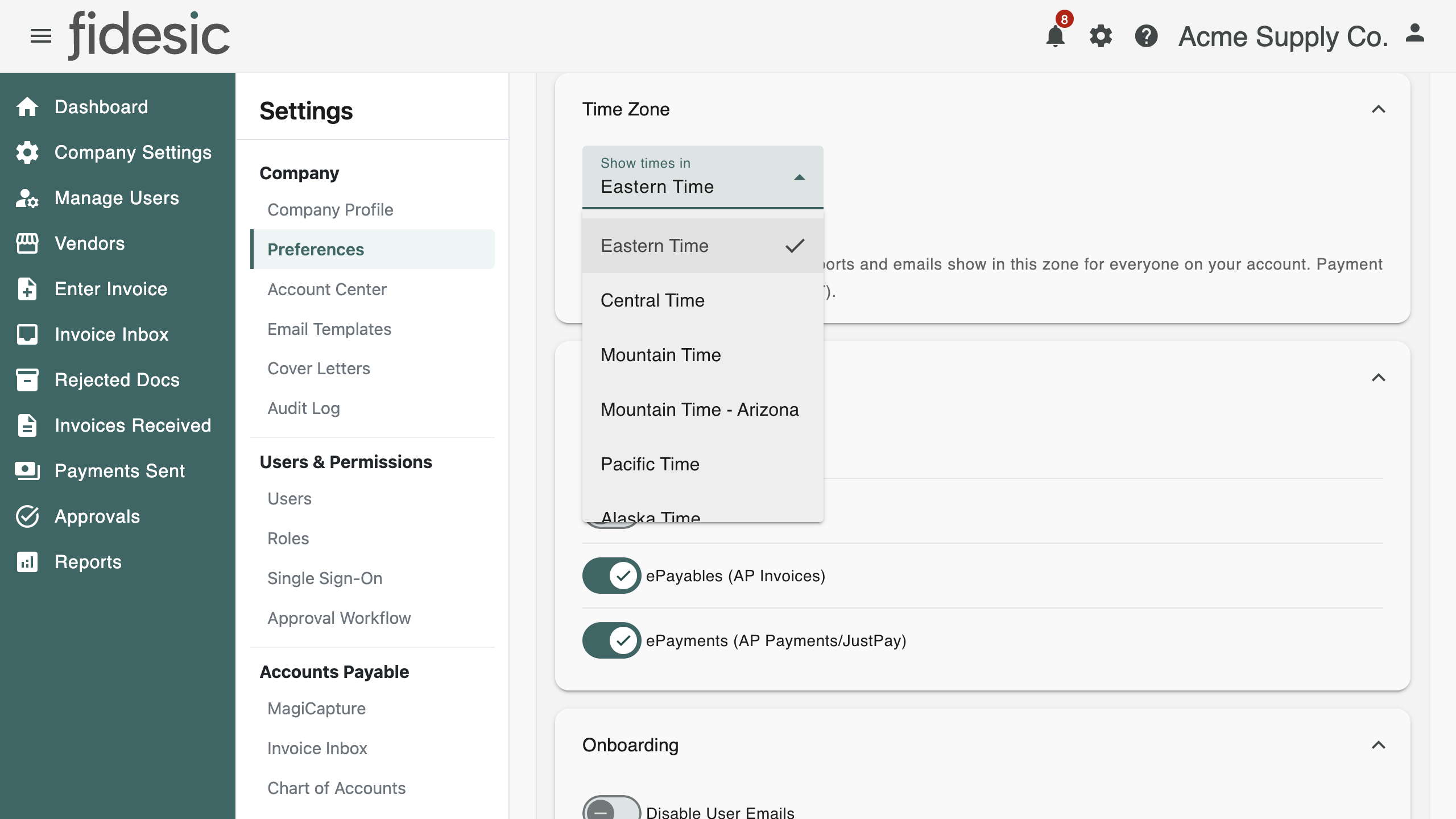
Fidesic shows times, such as when an invoice was received, approved or emailed, in your company's time zone. The time zone is set once for the whole account and applies to everyone on it. Eastern Time is the default.
Who can do this: users whose role has Manage Company Profile.
Choosing your time zone
- Go to Settings → Company → Preferences.
- In the Time Zone panel at the top, pick a zone under Show times in.
The change saves as soon as you pick it. The choices are Eastern, Central, Mountain, Arizona, Pacific, Alaska, Hawaii, Atlantic, Newfoundland and London (UK). Daylight saving time is handled for you.
What follows your time zone
- Times on screen, for example on invoice history, approval notes, notifications, the Audit Log and Sent Emails.
- Times in Excel exports of your invoice, payment and purchase order lists, and in exported reports.
- Date filters. When you filter a list or report by date, the days you pick are read in your time zone, so the results match the times you see.
- Times in emails sent to your vendors and customers.
What stays in Eastern Time
- Payment and check print cutoffs, such as the 3 PM ET ACH cutoff, because they follow the bank's schedule.
- Scheduled runs, such as statement times.
Changing the time zone is recorded in the Audit Log.