![fidesic-logo-300px-2023-2.png]](https://help.fidesic.com/hs-fs/hubfs/fidesic-logo-300px-2023-2.png?height=40&name=fidesic-logo-300px-2023-2.png)
Overview
To pay bills in Fidesic from Dynamics GP, each GP Checkbook ID needs a matching bank account in Fidesic. Instead of adding each account by hand, you can send your checkbooks from GP. Fidesic adds the ones it doesn't have yet, and updates the ones that have changed in GP.
Each checkbook is sent with its Checkbook ID as the Fidesic Account Nickname, which is how Fidesic matches your GP payments to the right account.
This needs version 18.6.2 or later of the Fidesic module for GP, and a Fidesic user with the Edit Bank Accounts permission.
Where the information comes from in GP
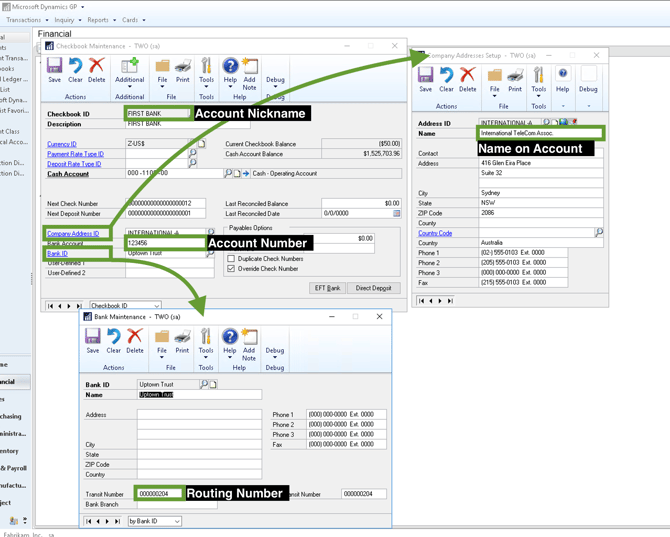
Fidesic reads each checkbook's details from these GP fields:
- Account Nickname: the Checkbook ID on Checkbook Maintenance
- Account Number: the Bank Account on Checkbook Maintenance. Any dashes are removed.
- Routing Number: the Transit Number on Bank Maintenance, for the checkbook's Bank ID
- Name on Account: the Name on Company Addresses Setup, for the checkbook's Company Address ID. If the checkbook has no Company Address ID, your GP company name is used. You can change it before sending (see below).
Send your checkbooks
All of your checkbooks
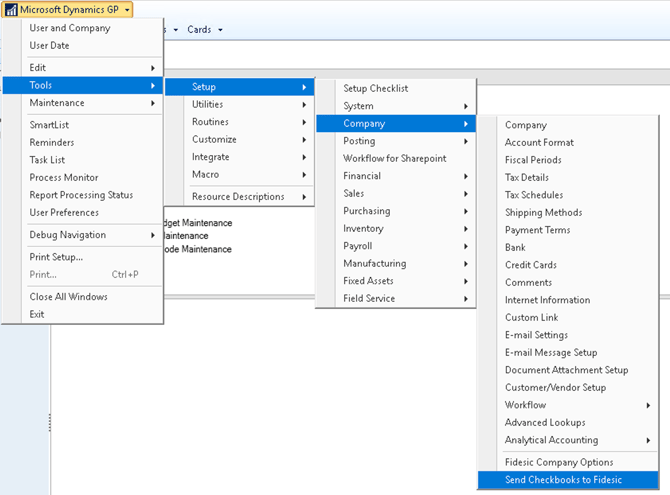
In GP, go to Microsoft Dynamics GP → Tools → Setup → Company → Send Checkbooks to Fidesic. This lists every active checkbook in the company.
One checkbook
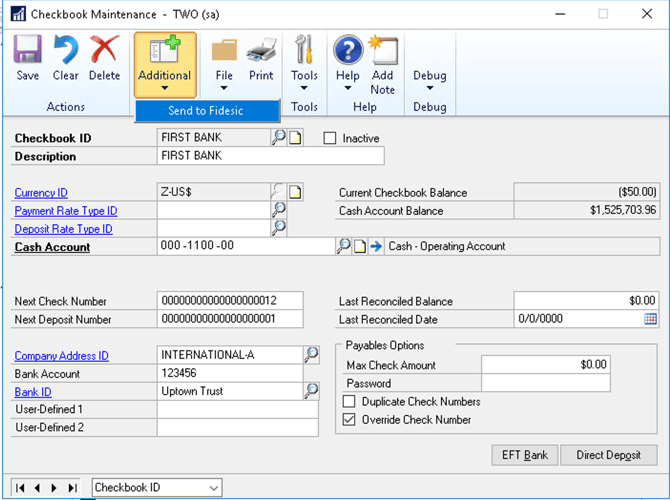
To send just the checkbook you're working on, open it in Checkbook Maintenance and choose Additional → Send to Fidesic. Any changes you've made to the checkbook are saved first.
Review and send
Both options open the Send Checkbooks to Fidesic window. It compares each checkbook with the bank accounts already in Fidesic and shows what will happen. Account numbers are masked, showing only the last four digits.
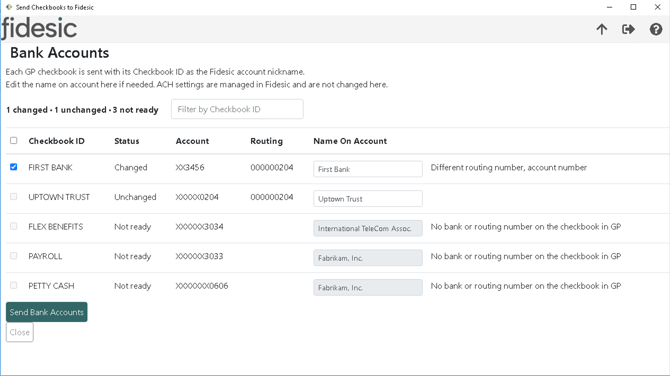
The Status column tells you what Fidesic will do with each checkbook:
- New: Fidesic has no bank account with this nickname, so it will be added.
- Changed: the account exists in Fidesic, but the routing number or account number is different in GP, or you've edited the name on account. It will be updated.
- Unchanged: the account already matches. Nothing needs to be sent.
- Conflict: the same bank account is already in Fidesic under a different nickname. Rename it in Fidesic or GP so the two match, then open the window again.
- Not ready: the checkbook is missing something Fidesic needs. The message next to it says what, for example No bank or routing number on the checkbook in GP. Fix the checkbook in GP, then open the window again.
New and Changed checkbooks are ticked for you. Untick any you don't want to send. Sendable checkbooks are listed first, and with a long list you can use Filter by Checkbook ID to find one.
Name on account: if the name from GP isn't the name your bank has on the account, type the right one in the Name On Account box. For an account already in Fidesic, the box shows the name Fidesic has, and changing it marks the checkbook as Changed.
When you're ready, click Send Bank Accounts and confirm. When it finishes, each checkbook you sent shows Added, Updated, or the reason it failed.
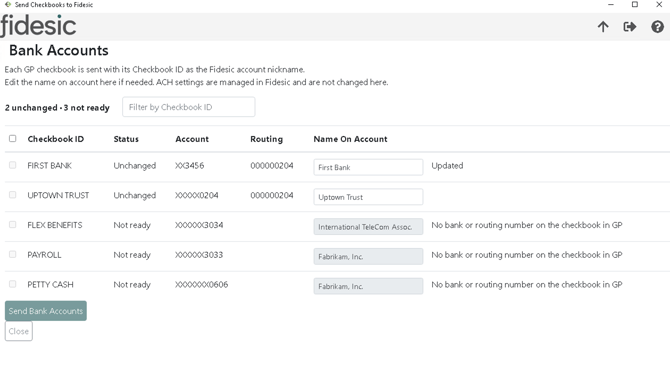
Click Close to return to GP.
ACH settings
Sending checkbooks only sets the nickname, name on account, routing number and account number. It never changes an account's ACH settings in Fidesic, so an account you update keeps them. To set up ACH on a new account, see Adding ACH Info to your Bank Accounts in Fidesic.