![fidesic-logo-300px-2023-2.png]](https://help.fidesic.com/hs-fs/hubfs/fidesic-logo-300px-2023-2.png?height=40&name=fidesic-logo-300px-2023-2.png)
The Sales Tax by Location report shows how much of each invoice was payables and how much was sales tax, for each location. Use it to check the tax your vendors charged, and to find invoices where no tax was charged, so you can work out the use tax you owe.
Who can use this: users with View Admin Reports.
Running the report
- Click Reports in the menu.
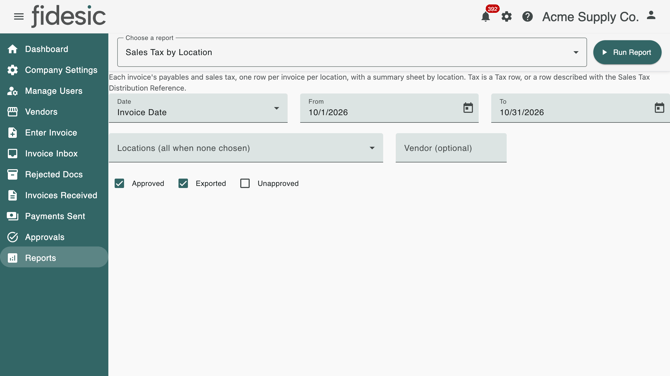
- Under Choose a report, pick Sales Tax by Location from the Payables group.
- Pick which Date to filter on: Invoice Date or Created Date. If your company uses Posting Date on Invoices, you can also pick Posting Date.
- Enter the From and To dates.
- Optionally pick one or more Locations and a Vendor. With no location chosen, the report covers every location.
- Tick the statuses to include. Approved and Exported are ticked to start with; tick Unapproved to add invoices still in approval.
- Click Run Report. The workbook downloads.
What's in the workbook
The Detail sheet has one row per invoice per location, with Location, Vendor Name, Vendor ID, Invoice Number, Invoice Date, Status, Exported Date, Payables, Sales Tax, Invoice Total, Effective Rate, Tax Account(s) and No Tax Charged.
The Summary sheet has one row per location: the number of invoices, payables, sales tax and effective rate, and how many invoices and how much in payables had no tax charged.
- Effective Rate is sales tax divided by payables. It's blank when payables are zero.
- No Tax Charged is decided for the whole invoice. On an invoice split across locations, a location isn't flagged just because its share carried no tax.
- Credit memos and returns show as negative amounts.
- Each invoice's payables plus its sales tax always add up to its total.
What counts as sales tax
A row on the invoice's coding counts as sales tax when it is:
- a Tax row, or
- a row described with your company's Sales Tax Distribution Reference, such as SALESTAX. This setting is under Settings → Accounts Payable → MagiCapture for Dynamics GP companies that don't use invoice charges. The match ignores upper and lower case.
Everything else is payables, with freight and misc added and trade discount taken off. If someone edits the description of a tax row so it no longer matches the reference, that row counts as payables.
With a Sales Tax Distribution Reference set, MagiCapture leaves the tax inside the line coding when an invoice is coded by its lines rather than by GL rows, so there is no tax row to find. Those invoices show their tax as payables and read Yes under No Tax Charged.
How a row gets its location
- If the invoice has a location in its header, every row uses it.
- If not, a row takes the location whose account segments match its account, with the most specific match winning.
- If neither gives a location, the row is listed under No location.
If your company turns on Run Reports by Location and you're assigned to locations, you can only choose, and only see, your own locations.