![fidesic-logo-300px-2023-2.png]](https://help.fidesic.com/hs-fs/hubfs/fidesic-logo-300px-2023-2.png?height=40&name=fidesic-logo-300px-2023-2.png)
Symptoms
On the Bills to Import window in Fidesic, the import finishes with 0 transactions imported successfully and one or more rows under Failed Transactions. The error message reads:
100-6520-00: Trx. Dim. Code CORNSILAGE of Trx. Dim. CORNSILAGE not valid with code HAYLAGE of Trx. Dim. HAYLAGE.
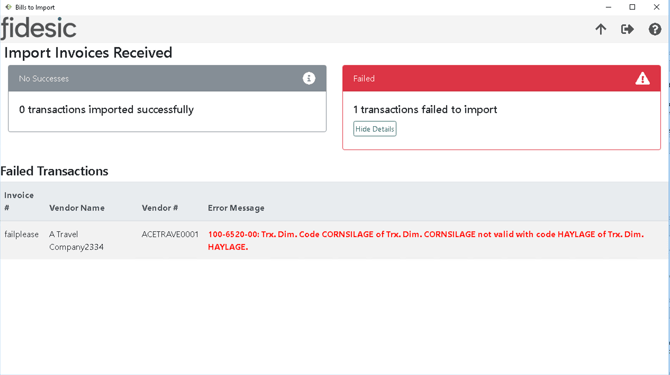
The failed invoice appears with the error in red under Failed Transactions.
The message follows this shape:
<GL account>: Trx. Dim. Code <code A> of Trx. Dim. <dimension A> not valid with code <code B> of Trx. Dim. <dimension B>.
Three things in it are worth reading carefully:
- The GL account at the start is the distribution line that failed — use it to find the line on the invoice.
- The two dimensions named are the pair GP is refusing to accept together.
- The two codes named are the specific values entered on that line.
Nothing is posted when this happens. The invoice stays in Fidesic and can be re-imported once the underlying setup or coding is corrected.
On an older build? Fidesic for GP versions before 18.6.0 reported this same problem with a different and misleading message, along the lines of “The transaction dimension <name> has been set to Fixed from Not allowed in the Accounting Class setup. But this transaction dimension…” That message pointed at Accounting Class setup, which was not the cause. If you are seeing it, the fix below still applies — and upgrading to 18.6.0 or later will report the real reason from then on.
Cause
Analytical Accounting in GP lets you control which transaction dimensions may be used together on the same distribution line. That control lives on each dimension's Relations list.
When an invoice line carries codes for two different dimensions, GP checks the relation between them before accepting the transaction. If that pair is restricted, GP rejects the whole invoice.
Why do some invoices import fine? The check only runs when two or more different dimensions on the same line both have codes. An invoice coded to a single dimension never trips it. This is usually why the problem looks intermittent — it tracks how the invoice was coded, not which vendor or amount it is for.
Before you change anything
Someone set this restriction deliberately at some point. Decide which of these is true before picking a fix:
| Situation | What to do |
|---|---|
| The two dimensions should be usable together — the restriction is wrong or out of date | Option 1 — change the relation in GP |
| The restriction is correct — these two really shouldn't appear on one line | Option 2 — correct the coding on the invoice |
| The relation is set to Is owned by, Owns Trx Dimension or Valid subset | Option 3 — allow this specific code pair |
Changing a dimension relation affects all of Dynamics GP, not just invoices coming from Fidesic. If you are not the person who owns your chart of accounts and AA setup, check with them first.
Option 1: Allow the two dimensions to be used together
Use this when the two dimensions legitimately belong on the same line and the restriction shouldn't be there.
1. Open Transaction Dimension Maintenance
In Dynamics GP, go to Cards › Financial › Analytical Accounting › Transaction Dimension.
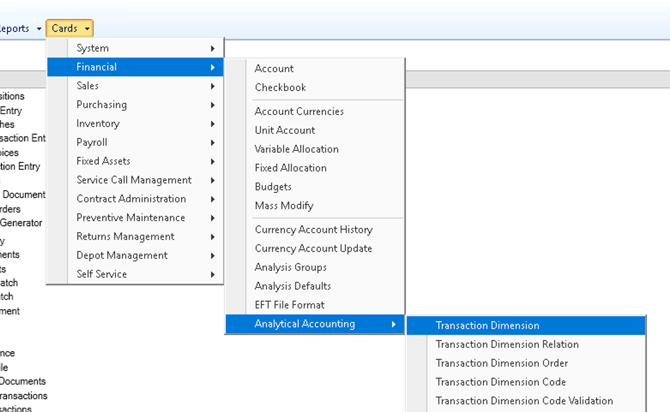
Cards › Financial › Analytical Accounting › Transaction Dimension.
2. Look up the first dimension from the error
In the Trx Dimension field, enter or look up either of the two dimensions named in the error message. It does not matter which one you start from — the relation is shared between the pair, so you will find the other one in its list.
3. Click Relations
With the dimension loaded, click the Relations button along the bottom of the window.
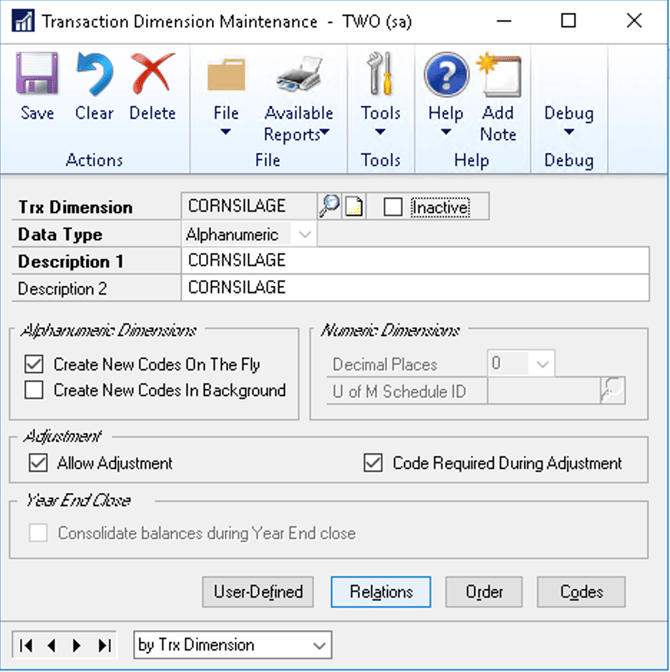
The Relations button sits at the bottom of Transaction Dimension Maintenance.
4. Find the other dimension and change its relation
The Transaction Dimension Relations window lists every other dimension and how it relates to the one you opened. Find the row for the second dimension named in your error message. It will read Combination not allowed.
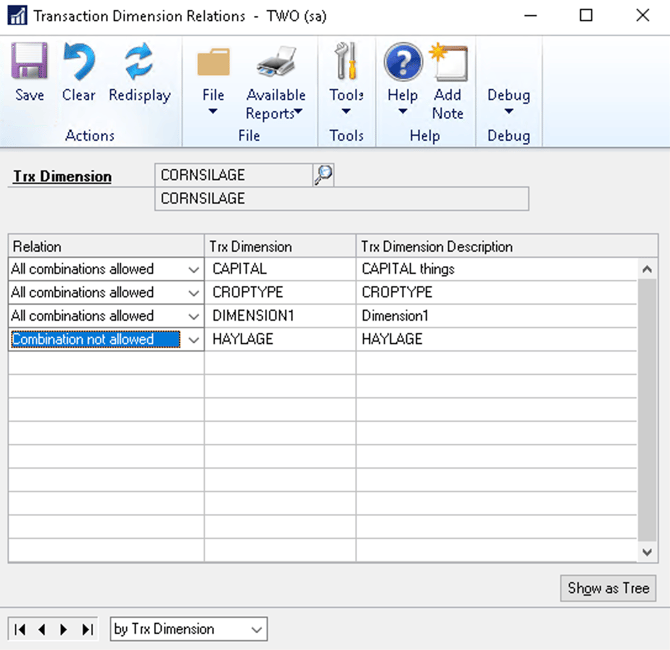
The offending row reads Combination not allowed. Others in the list are set to All combinations allowed.
Change that row's Relation dropdown to All combinations allowed.
5. Save
Click Save, then close the window.
Verify it worked
Return to Fidesic and re-import the invoice. It should now import successfully and appear in your GP batch. If a different dimension pair is restricted on the same invoice, you will get a new error naming that pair — repeat these steps for it.
Option 2: Correct the coding on the invoice
Use this when the restriction is right and the invoice was simply coded incorrectly.
- In Fidesic, open the invoice that failed.
- Find the distribution line using the GL account shown at the start of the error message.
- Remove or change one of the two conflicting dimension codes so the line no longer carries both.
- Save the invoice and re-import.
Nothing needs to change in Dynamics GP for this route.
Option 3: Allow a specific code pair
The Relations window offers more than a simple yes or no. If the row for the second dimension reads Is owned by, Owns Trx Dimension or Valid subset, then the two dimensions can be used together — but only in combinations you have explicitly approved, code by code. The pair on your invoice is not yet on that approved list.
To add it, go to Cards › Financial › Analytical Accounting › Transaction Dimension Code Validation and add the two codes named in the error as a valid combination.
If you would rather not maintain combinations at that level of detail, setting the relation to All combinations allowed as described in Option 1 removes the requirement entirely.
Prevention
- When you add a new transaction dimension, review its Relations list before it goes into use. New dimensions are the most common source of unexpected restrictions.
- Keep the people coding invoices informed about which dimension combinations are restricted, so the coding matches the setup from the start.
- Remember that Fidesic sends whatever codes are on the invoice — all dimension validation happens inside Dynamics GP, against your AA setup.
Still having issues?
If the invoice still fails after the relation has been changed and saved, gather the following and contact Fidesic support:
- The full error message, copied exactly, including the GL account at the start
- The invoice number and vendor
- A screenshot of the Transaction Dimension Relations window for the first dimension named in the error
- Your Fidesic for GP version number