![fidesic-logo-300px-2023-2.png]](https://help.fidesic.com/hs-fs/hubfs/fidesic-logo-300px-2023-2.png?height=40&name=fidesic-logo-300px-2023-2.png)
When an invoice bills a purchase order, Import Lines from PO fills the invoice's lines from the PO: item, description, quantity, unit cost and amount. Each imported line is matched to its PO line, so PO match can check it.
Who can do this: users whose role has Enter Invoices or Adjust Invoices, on a company that uses purchase orders.
Premium feature: purchase orders, including Import Lines from PO, are a premium feature. To turn them on for your company, contact sales@fidesic.com.
Opening Import Lines from PO
- Enter or adjust the invoice, and pick its vendor.
- Above the GL coding, click Import Lines from PO.
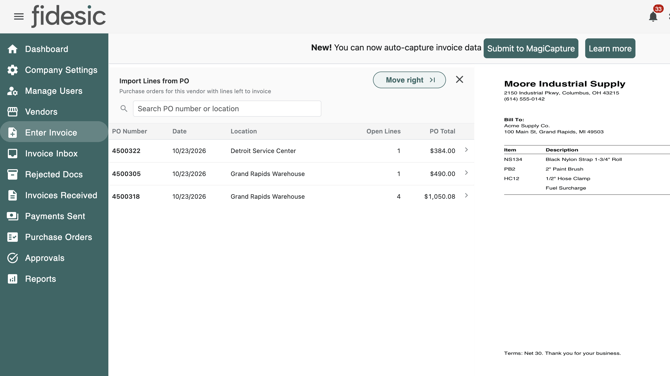
If the invoice's PO Number names one of the vendor's POs, its lines open straight away. Otherwise you see the vendor's purchase orders that still have lines left to invoice.
The panel opens beside the invoice document, so you can read, scroll and click the PDF while you pick lines. Click Move right or Move left to put it on the other side. Close it with the X, or press Escape while you're in the panel.
Finding the PO
The list shows the vendor's 50 newest open POs. To find another one, type part of its PO number or its location in Search PO number or location. The search covers all of the vendor's open POs, not just the 50 shown, and leading zeros don't matter: "1234" finds PO 001234.
If MagiCapture read a PO number off the invoice, Paste captured PO searches for it. Buyer initials, "PO#" and similar extras around the number are ignored, so "JM 35301" or "PO# 35301" finds PO 35301.
Click a PO to see its lines.
Picking the lines
Every line with something left to invoice starts ticked, at the quantity left to invoice. Untick the lines the invoice doesn't bill, then click Import. A line already on the invoice is marked already added and can't be imported twice.
If the invoice already has GL lines, you're asked whether to Replace them with the PO lines or Add Below them.
Let AI pick the lines the invoice bills
On an invoice MagiCapture read, click Match to invoice. AI compares the lines on the invoice document with the PO's lines and:
- ticks only the PO lines the invoice bills;
- fills in the invoice's quantity for each, in the PO line's unit. For example, 72 rolls of 300 feet becomes 21,600 on a PO counted in feet;
- uses the invoice's amount for each line, so the imported lines add up to the document. If that amount differs from the PO's price, the difference shows as a price variance;
- lists any invoice lines that aren't on this PO under On the invoice, not on this PO.
Check the result before you import. If nothing matches, the panel says so and keeps its usual selection.
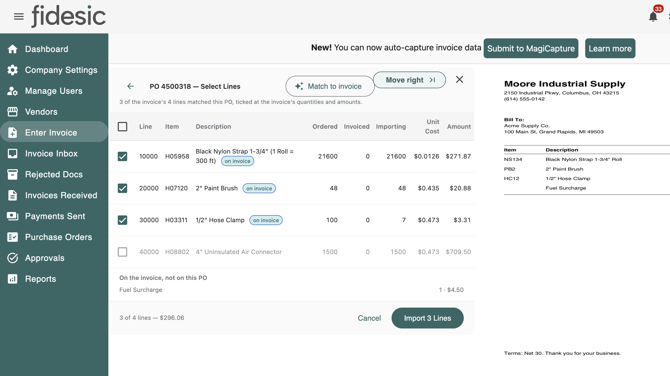
Match to invoice appears only when the invoice has a document and Match PO Numbers Flexibly? is turned on (see below).
Invoices that bill more than one PO
One invoice can bill lines from several POs. After importing from one PO, click Import Lines from PO again, use the back arrow to return to the vendor's PO list, and import from the next PO. Each line keeps its own PO.
- The invoice's PO Number stays the first PO's. It can also be left blank when every line carries its own PO.
- On the invoice page, every PO the invoice bills is listed and links to the PO, and each line's match shows its PO when there are several.
- PO match checks quantities against each PO separately. Freight, misc and tax are checked against the invoice's PO Number, or, when that is blank, the PO of the first line that has one.
Turning on flexible PO number matching
Who can do this: users whose role has Manage Company Profile.
- Go to Settings → Accounts Payable → MagiCapture.
- Make sure Capture PO Numbers? is on.
- Turn on Match PO Numbers Flexibly?
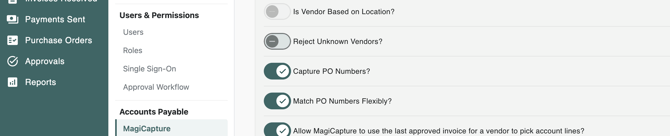
With it on, a PO number MagiCapture captures that matches no PO exactly is tried again without buyer initials, separators and leading zeros, so "JM 35301" or "35301 H" links to PO 35301. If that still finds nothing, AI looks through the vendor's open POs. A PO it is confident about is linked, with a note on the invoice asking you to check it. If it is less sure, the invoice isn't linked, and a note names the PO it might be. The setting also turns on Match to invoice. It is off by default.