![fidesic-logo-300px-2023-2.png]](https://help.fidesic.com/hs-fs/hubfs/fidesic-logo-300px-2023-2.png?height=40&name=fidesic-logo-300px-2023-2.png)
If your company pays from many bank accounts, you can add them all at once from a spreadsheet instead of entering each one with Add Bank Account. The import only adds new accounts. It never changes or removes accounts that are already in Fidesic.
Who can do this: users whose role has the Edit Bank Accounts permission.
Preparing the file
Use a .csv, .xls or .xlsx file with one account per row and a header row. If the workbook has a sheet named "Fidesic", that sheet is imported; otherwise the first sheet is.
| Column | Required | What to enter |
|---|---|---|
| Nickname | Yes | How the account is named in Fidesic, up to 30 characters. For Dynamics GP, use the account's Checkbook ID. |
| Name on Account | Yes | Your company's name as the bank has it, up to 100 characters. |
| Routing Number | Yes | The bank's 9-digit routing number. |
| Account Number | Yes | 1 to 17 digits. |
| Company ID | No | Only for Direct ACH. Include both Company ID and Origin Number, or neither. |
| Origin Number | No | Only for Direct ACH, with Company ID. |
Column names aren't case-sensitive. Spaces and hyphens inside routing and account numbers are ignored.
Tip: format the Routing Number and Account Number columns as text in Excel, so numbers keep their leading zeros. If Excel has already dropped the leading zeros from a routing number, Fidesic adds them back.
Importing the file
- Open the gear menu and choose Administration → Banking.
- Click Import Bank Accounts, next to Add Bank Account. This opens the Import Files page with Bank Accounts already chosen.
- Choose your file and upload it.
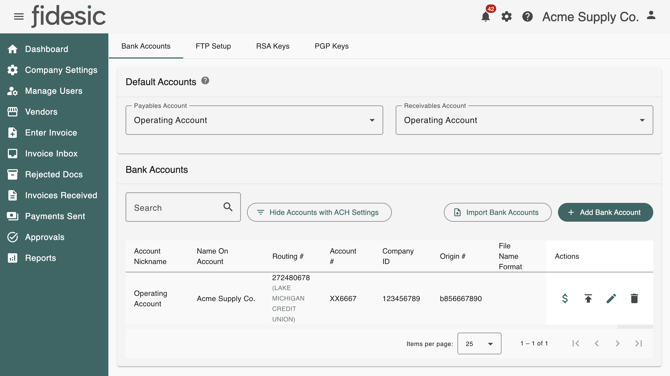
You can also start from the gear menu under File operations → Import Files and choose Bank Accounts as the type.
Reading the results
When the import finishes, the Import Results window shows how many accounts were imported and lists any rows that weren't, with the reason, for example:
Row 4 (Operating 2): Routing number must be a valid 9 digit ABA routing number.
Rows are numbered as they are in your spreadsheet, so row 2 is the first account under the header. A row with a problem is skipped and the other rows are still imported. Fix the skipped rows and import just those again.
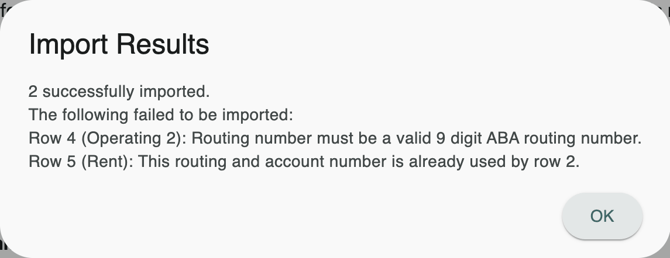
A row is skipped when:
- a required value is blank, or a nickname or name on account is too long
- the routing number isn't a valid 9-digit routing number, or the account number isn't 1 to 17 digits
- the nickname, or the same routing and account number, is already used by an account in Fidesic or by an earlier row in the file
- only one of Company ID and Origin Number is filled in
If the file is missing a required column, nothing is imported and Fidesic tells you which column it couldn't find, for example "Could not find column Name on Account".
After importing
The new accounts appear on the Banking page. To set up Positive Pay or ACH file details on an account, edit it there. See Adding ACH Info to your Bank Accounts in Fidesic.