![fidesic-logo-300px-2023-2.png]](https://help.fidesic.com/hs-fs/hubfs/fidesic-logo-300px-2023-2.png?height=40&name=fidesic-logo-300px-2023-2.png)
How do I add vendor bank account information to Fidesic?
You can add vendor bank account information to Fidesic by uploading an import file through the Import Files page or by entering it manually on an individual vendor card. Use the import method to migrate multiple vendors at once; use the vendor card method to add, update, validate, or remove a single vendor's banking details.
Note: Once uploaded, this information is stored in an encrypted form and will not be visible to anyone. The flat file you created for uploading should be destroyed appropriately after upload.
How do I add bank accounts to multiple vendors at once?
Before you begin, confirm both of the following prerequisites are met:
- Your user role must include an admin-level permission and the Edit Vendor permission.
- Vendor ACH processing information — specifically the Immediate Origin Number — must be added to the bank account on the Bank Accounts page in Fidesic. The import option will not appear until this is saved.
Once the prerequisites are met, follow these steps:
- Log in to Fidesic and navigate to the Import Files page.
- Select the Vendor Bank Accounts import.
- Upload your import file with the required column headers. The file must include the following columns:
- VENDORID — the vendor ID as it appears in your accounting system
- BANKNAME — the name of the vendor's bank
- EFTBankAcct — the vendor's bank account number
- EFTTransitRoutingNo — the vendor's bank routing number
Fidesic will attach the banking information to your vendor records. The next time you upload a payment batch, you can pay these vendors via ACH.
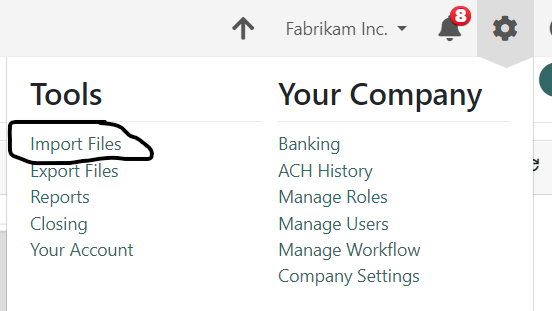
Select the Vendor Bank Accounts import
If you cannot see this upload option:
1. This import is only available to users with any admin level permission as well as the "Edit Vendor" permission on their role.
2. Vendor ACH processing info must be added to your bank account in Fidesic. Once this info has been added (Immediate Origin Number Specifically) to the bank accounts page, this option will enable.
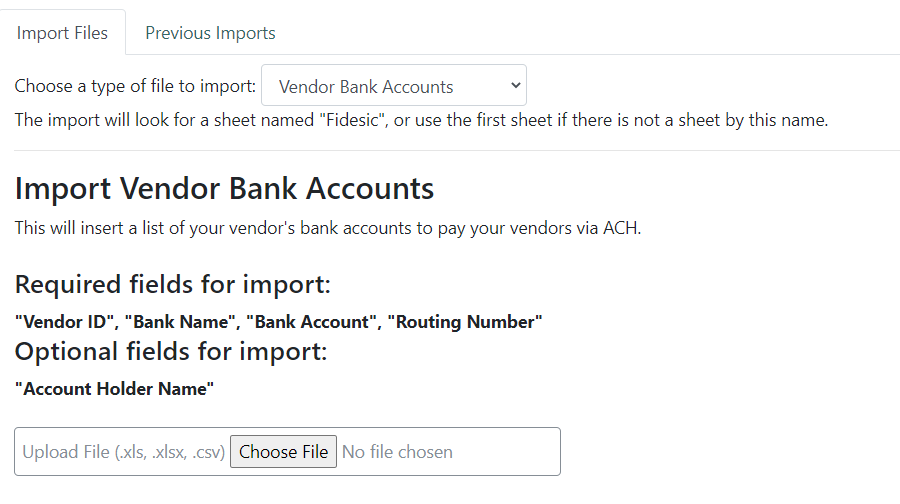
Upload your flat file with the required column headers. This will attach Vendor Banking information to your vendor records. The next time you upload a batch of payments you can pay these vendors via ACH.
How do I manage the bank account for a specific vendor?
To add, view, update, or remove a bank account for a single vendor:
- Navigate to the vendor's card in Fidesic.
- Click the Bank Account tab.
- If a bank account is already on file, the account details are displayed along with a Delete option to remove it.
- If no bank account is on file, you can enter the account information directly from that window.
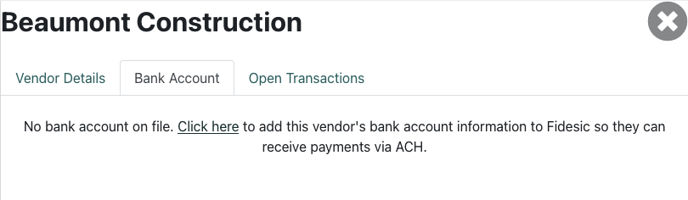
How do I pull existing vendor banking information from Dynamics GP?
SELECT
    pm.VENDORID,
    sy.BANKNAME,
    sy.EFTBankAcct,
    sy.EFTTransitRoutingNo
FROM PM00200 pm
LEFT JOIN SY06000 sy ON pm.VENDORID = sy.VENDORID