![fidesic-logo-300px-2023-2.png]](https://help.fidesic.com/hs-fs/hubfs/fidesic-logo-300px-2023-2.png?height=40&name=fidesic-logo-300px-2023-2.png)
If you code invoices by location, MagiCapture can fill in each invoice's location for you. It has three places to look: a location code in the address the invoice was emailed to, the invoice itself, and a default fallback location. You choose which of the first two it tries first.
Who can do this: users whose role has Manage Company Profile. Your company needs Use GL Locations/Markets turned on, under Settings → Company → Preferences → GL and Dimension Settings. See Adding New Locations to Fidesic.
Turning it on
- Go to Settings → Accounts Payable → MagiCapture.
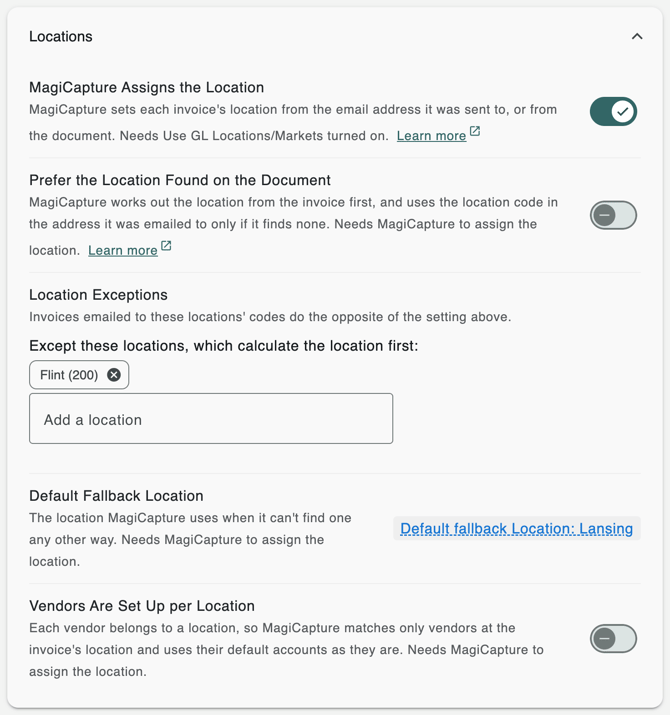
- Under Locations, turn on MagiCapture Assigns the Location.
- Choose the other settings in the section, described below. They can only be changed while this one is on.
Emailing invoices to a location's address
Your MagiCapture address is shown under Settings → Accounts Payable → Invoice Inbox, for example acme@ocr.fidesic.com. Each location also has its own address: add a plus sign and the location's code before the @. For a location whose code is 101, that's acme+101@ocr.fidesic.com. If your email system doesn't accept a plus sign, use an underscore instead: acme_101@ocr.fidesic.com.
- The code is the location's Location Code under Settings → Accounts Payable → Locations. Upper or lower case doesn't matter.
- Put one location code in the address. An address with two is treated as having none.
- A code that matches none of your locations is ignored.
Give each location's address to the vendors who bill it, or set up forwarding from each location's own mailbox.
Finding the location on the invoice
To work out the location from the invoice itself, MagiCapture first checks how your team coded earlier approved invoices with the same ship-to address, then the same service, billing or customer address. If most of them went to one location, it uses that one. Otherwise it compares the ship-to, service, billing and customer addresses on the invoice, and the names on them, with your locations' names and addresses on the Locations page. Keeping your locations' addresses filled in helps it find them.
The order MagiCapture follows
By default, the email address comes first:
- The location code in the address the invoice was emailed to.
- The location found on the invoice.
- The Default Fallback Location.
Turn on Prefer the Location Found on the Document to swap the first two:
- The location found on the invoice.
- The location code in the address the invoice was emailed to.
- The Default Fallback Location.
An invoice uploaded to the Invoice Inbox, or emailed to the address without a location code, has no email location, so MagiCapture looks on the invoice and then uses the fallback.
Making exceptions for some locations
Under Location Exceptions, add the locations that should follow the other order. With Prefer the Location Found on the Document on, the list reads Except these locations, which use the email location first. With it off, it reads Except these locations, which calculate the location first. An exception applies to invoices emailed to that location's address.
The fallback location
Click Default fallback Location and pick a location from the list. MagiCapture uses it only when it finds no location any other way. With no fallback, such an invoice comes in without a location, and someone picks one before it can be approved.
What you see on the invoice
MagiCapture adds a note to the invoice saying where the location came from, for example "The location is set from the delivered to code in the email", "The location is found from the shipping address", "Similar invoices have this location set" or "No location found, falling back to the default location."
When the invoice was emailed to a location's address but ends up with a different location, a warning names both, for example "Invoice was submitted to acme+101@ocr.fidesic.com, and we detected 205". Check those invoices before approving them.
Examples
Your locations are Downtown (code 101) and Airport (code 205), and Downtown is your fallback.
- Email first (the default). An invoice shipped to the Airport is emailed to acme+101@ocr.fidesic.com. It's coded to Downtown, from the email address, without looking at the invoice's address.
- Document first. With Prefer the Location Found on the Document on, the same invoice is coded to Airport, with a warning that it was emailed to Downtown's address. An invoice to acme+101@ocr.fidesic.com that shows no address MagiCapture recognizes is coded to Downtown, from the email address.
- An exception. With document first on, and Airport under Location Exceptions, invoices emailed to acme+205@ocr.fidesic.com are coded to Airport whatever the invoice shows, while the rest still go by the document.
- The fallback. An invoice uploaded to the Invoice Inbox that shows no recognizable address is coded to Downtown.
Vendors Are Set Up per Location
Turn this on if each of your vendors belongs to one location, with default accounts already coded for it. MagiCapture then:
- looks for the vendor only among vendors with a default account at the invoice's location. It works out the location first, and if it finds none, not even a fallback, it doesn't look for a vendor at all;
- uses the vendor's default accounts as they are, instead of swapping in the invoice location's segment.
Leave it off if the same vendor bills several of your locations.