![fidesic-logo-300px-2023-2.png]](https://help.fidesic.com/hs-fs/hubfs/fidesic-logo-300px-2023-2.png?height=40&name=fidesic-logo-300px-2023-2.png)
Overview
If this is your first time installing vendor sync, start at the beginning of this guide.
If you are just looking to add an ADDITIONAL company to an existing setup, skip to the Configuration section.
Preparation
- User Log out and GP shutdown NOT required for this module.
- The Fidesic Account Owner is required to view and acquire API Keys to Connect.
- Fidesic Vendor Sync Module can be installed on any machine with GP Database Access. The module will run as a service on this machine and sync any changes made to the vendor lists, or chart of accounts within GP Automatically.
- Implementation must be done as a WINDOWS ADMINISTRATOR during all steps. Whenever possible to “run application as administrator”, please do so to avoid any issues.
- Instructions are as if the module is installed on the SQL server host. Installation can be done on a different machine with network access, just make sure use the correct machine name or IP of the machine hosting the SQL database
- Download Fidesic Sync Module here.
Installation
- Uninstall all previous version using standard windows Control Panel “Programs and Features”
- Open “Fidesic Vendor Sync Service.exe” using the windows “Run as Administrator” option.
- Follow prompts for standard installation.
- Service should Auto-Open upon completion.
- Default install location for manual open: C:\Program Files (x86)\Fidesic\Fidesic Service Monitor.exe
Configuration
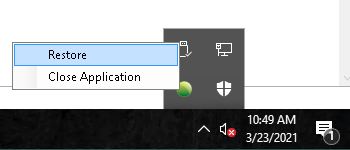
- Fidesic Vendor Sync runs in the task bar as a Green Dot. Double clicking will open configuration window.
- Select Setup:Configure
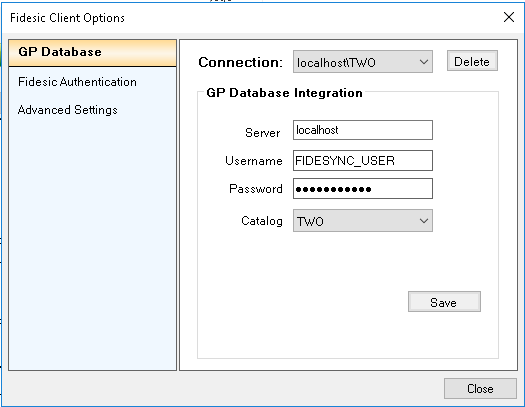
GP Database Setup
- Connection: Create New (this will be the same to create a new connection to an existing setup)
- Server: if installed on SQL server host machine, use “localhost”. If not, use local IP address or Name of the machine hosting SQL Server
- Username: your ‘sa’ user name
- Password: ‘sa’ password
- Catalog: Select your “GP Company Database”
Fidesic Authentication
In this window, the "Username" is the API key, and the "Password" is the API password. Click here to learn how to get this information from Fidesic. The Account Owner is the only user with access to these keys within Fidesic. The account owner will be Tagged as such in the manage users list in Fidesic.
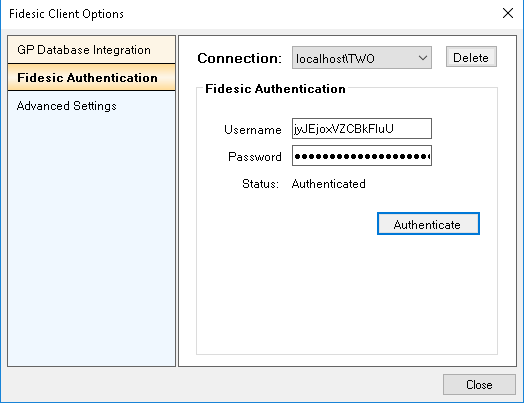
If you provide the proper login info and receive a "cannot authenticate" message, make sure that the machine you're on is able to ping api.fidesic.com and that our software has writes to log files to the server.
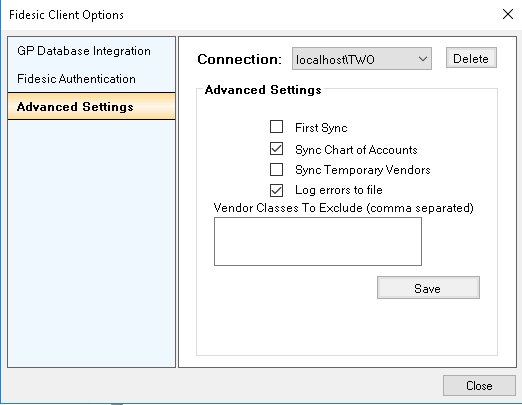
Advanced Settings- First Sync: Will be auto-selected after install, and auto-deselected after initial sync. This check all vendor records instead of “new” vendor records
- Sync Chart of Accounts: When selected the sync service will also upload GL lists, and vendor based GL defaults
- Sync Temporary Vendors: When selected this option sync temporary vendors. Default is not to sync temporary vendors
- Vendor Classes to Exclude: Enter any vendor classes you would like to exclude from the sync process.
- Log Errors to File: This will create a log file in the C:\Program Files\Fidesic\Sync Service\Logs folder on the local machine. This file will contain all connection attempts, and any errors encountered. Do not enable permanently, it is intended for debugging purposes only. This setting will create one log file per day, which will gradually take up space on your local harddrive.
Setting up Non SA SQL user for connecting our vendor sync to your company Database(Optional)
Using a dedicated SQL login instead of sa Download FIDESYNC_TABLE_AND_ROLE.sql and run it against your DYNAMICS database and against every company database Vendor Sync connects to. The script is safe to run more than once. Run it again whenever you:
- install or update Fidesic Vendor Sync
- upgrade Dynamics GP
- add a new company to sync
To have the script add your service login to FIDESYNC_ROLE for you, set @LoginName at the top. Otherwise, add the login as a user in each database and assign it FIDESYNC_ROLE yourself.
As an alternative to using the 'sa' login, you can create a SQL role specific to our Vendor sync modules requirements.
- Run the attached script to Create our tables, create a security role, and set permissions for that user.
- FIDESYNC_TABLE_AND_ROLE.sql (Note: This needs to be run against the DYNAMICS database and each COMPANY database using sync service)
- Create Login in Sql Management Studio-
- Set User Name, Password, and Set the Default Database.
- User Mapping Settings will need the "FIDESYNC_ROLE" role that was creating using the previous script.
- Make sure to select DYNAMICS and any company databases that will need access to this service.
- Select the "FIDESYNC_ROLE" as the database role membership.
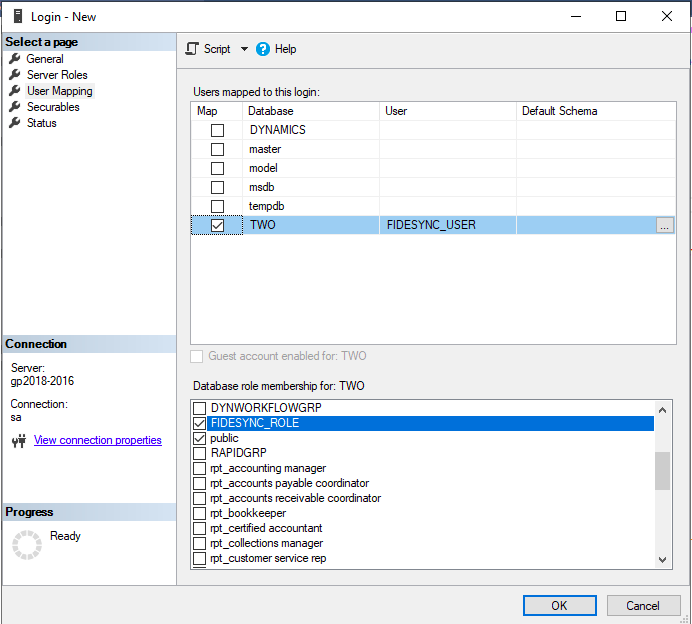
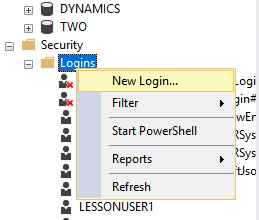
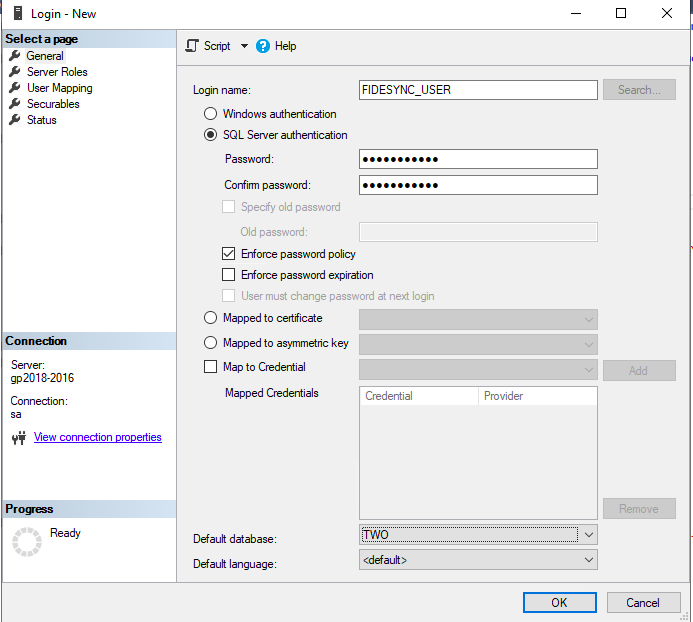
Table References:
- 'Select' Access to the following tables (select access preferred to all GP company tables for future compatibility):
- "PM00200"
- "PM00300"
- "SY01200"
- "GL00100"
- "GL00105"
- "PM00203"
- "SY03300"
- 'Select', 'Insert', 'Update', 'Delete', 'Alter' Access to the following table:
- "FIDESYNC" - To Be Created on First Connect or manually.
- 'Select' Access to the DB_Upgrade and SY01500 tables on the DYNAMICS database
FIDESYNC_TABLE_AND_ROLE.sql Code Block
/*
*    FIDESYNC Installation / Update script  (Fidesic Vendor Sync for GP 2.2+)
*
*    Safe to run more than once. Use it for a new install, after updating Vendor Sync,
*    after a Dynamics GP upgrade, and whenever you add a company to sync.
*
*    What it does:
*      System database (DYNAMICS):  creates FIDESYNC_ROLE and grants SELECT on the
*                                   GP version (DB_Upgrade) and company list (SY01500) tables.
*      Each company database:       creates or updates the FIDESYNC tracking table,
*                                   creates FIDESYNC_ROLE, grants SELECT on the dbo schema
*                                   (every GP table and view, including ones added later),
*                                   and grants read/write on FIDESYNC.
*
*    Instructions:
*      1. Create a SQL Server login for the service (Security > Logins), if you have not already.
*      2. Optional: set @LoginName below to that login. The script then adds the login as a user
*         in this database and assigns it to FIDESYNC_ROLE. Leave it blank to do that by hand.
*      3. Run this script against the DYNAMICS database and against EVERY company database
*         that Vendor Sync connects to.
*/

DECLARE @LoginName sysname = N'';   -- e.g. N'fidesic_sync'

SET NOCOUNT ON;

/****** CREATE FIDESYNC ROLE ******/
IF DATABASE_PRINCIPAL_ID('FIDESYNC_ROLE') IS NULL
BEGIN
    CREATE ROLE [FIDESYNC_ROLE];
    PRINT 'Created FIDESYNC_ROLE role';
END

/****** OPTIONAL: ADD THE SERVICE LOGIN TO THIS DATABASE AND THE ROLE ******/
IF LEN(@LoginName) > 0
BEGIN
    IF SUSER_ID(@LoginName) IS NULL
    BEGIN
        RAISERROR('Login %s does not exist on this server. Create it first, then rerun.', 16, 1, @LoginName);
        RETURN;
    END

    DECLARE @sql nvarchar(max);
    -- The login may already be mapped to this database under a different user name.
    DECLARE @UserName sysname = (SELECT name FROM sys.database_principals WHERE sid = SUSER_SID(@LoginName));

    IF @UserName IS NULL
    BEGIN
        SET @UserName = @LoginName;
        SET @sql = N'CREATE USER ' + QUOTENAME(@UserName) + N' FOR LOGIN ' + QUOTENAME(@LoginName);
        EXEC sp_executesql @sql;
        PRINT 'Added user ' + @UserName + ' to ' + DB_NAME();
    END

    IF IS_ROLEMEMBER('FIDESYNC_ROLE', @UserName) = 0
    BEGIN
        SET @sql = N'ALTER ROLE [FIDESYNC_ROLE] ADD MEMBER ' + QUOTENAME(@UserName);
        EXEC sp_executesql @sql;
        PRINT 'Added ' + @UserName + ' to FIDESYNC_ROLE';
    END
END

/****** SYSTEM DATABASE: GP version and company name lookups ******/
-- SY01500 (company master) exists only in the GP system database.
IF OBJECT_ID(N'dbo.SY01500', N'U') IS NOT NULL
BEGIN
    GRANT SELECT ON dbo.SY01500 TO [FIDESYNC_ROLE];
    IF OBJECT_ID(N'dbo.DB_Upgrade', N'U') IS NOT NULL
        GRANT SELECT ON dbo.DB_Upgrade TO [FIDESYNC_ROLE];
    PRINT 'Granted SELECT on DB_Upgrade and SY01500 to FIDESYNC_ROLE';
    PRINT 'Finished system database ' + DB_NAME() + '. Now run this script against each company database.';
    RETURN;
END

/****** COMPANY DATABASE: FIDESYNC TRACKING TABLE ******/
IF OBJECT_ID(N'dbo.FIDESYNC', N'U') IS NULL
BEGIN
    CREATE TABLE dbo.FIDESYNC(
        ID INT IDENTITY PRIMARY KEY,
        TableName NVARCHAR(50) NOT NULL,
        TableKey NVARCHAR(50) NOT NULL,
        LAST_SYNC DATETIME NOT NULL,
        FAILED_ATTEMPT DATETIME,
        FAILED_COUNT INT NOT NULL DEFAULT 0);
    PRINT 'Created FIDESYNC table';
END
ELSE
    PRINT 'FIDESYNC table already exists';

IF COL_LENGTH(N'dbo.FIDESYNC', N'FAILED_ATTEMPT') IS NULL
    ALTER TABLE dbo.FIDESYNC ADD FAILED_ATTEMPT DATETIME;
IF COL_LENGTH(N'dbo.FIDESYNC', N'FAILED_COUNT') IS NULL
    ALTER TABLE dbo.FIDESYNC ADD FAILED_COUNT INT NOT NULL DEFAULT 0;

/****** COMPANY DATABASE: PERMISSIONS ******/
-- A schema-level grant covers every current GP table and view, and also tables created later
-- (a GP upgrade rebuilds tables, and Analytical Accounting can be installed later). Grants on
-- individual tables are lost when a table is rebuilt.
GRANT SELECT ON SCHEMA::dbo TO [FIDESYNC_ROLE];
PRINT 'Granted SELECT on all GP tables and views (dbo schema) to FIDESYNC_ROLE';

GRANT SELECT, INSERT, UPDATE, DELETE, ALTER ON dbo.FIDESYNC TO [FIDESYNC_ROLE];
PRINT 'Granted SELECT, INSERT, UPDATE, DELETE, ALTER on FIDESYNC to FIDESYNC_ROLE';

PRINT '';
PRINT 'Finished company database ' + DB_NAME() + '.';
IF LEN(@LoginName) = 0
    PRINT 'Next: add the service login as a user in this database and assign it to FIDESYNC_ROLE.';