![fidesic-logo-300px-2023-2.png]](https://help.fidesic.com/hs-fs/hubfs/fidesic-logo-300px-2023-2.png?height=40&name=fidesic-logo-300px-2023-2.png)
Process Overview
Once you've set up your Fidesic account, connected it with you ERP and synced your data, you can begin sending invoices into our MagiCapture system for processing.
These invoices will be automatically capture, and sent out for approval using our approval workflow engine. If you've just set up an account, you will be automatically set as the default approver.
Direct Upload and Submission
The most direct way to test MagiCapture is to upload an invoice and send it to MagiCapture as a one-off.
To do so, navigate to Enter Invoice, upload a PDF, and click Submit to MagiCapture to submit the invoice for processing.
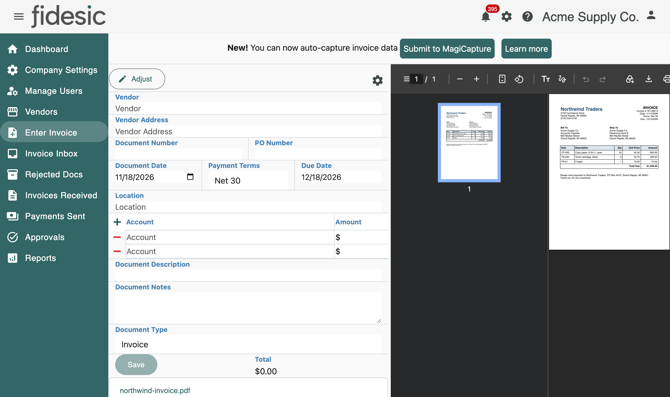
The invoice is sent to MagiCapture immediately and all captured data is returned.
- Fully captured: A completed invoice is created automatically.
- Partially captured: MagiCapture populates all extracted data and prompts you to complete the remaining fields. Partially captured invoices are not charged.
What is my OCR Email Address?
Go to Settings → Accounts Payable → Invoice Inbox.
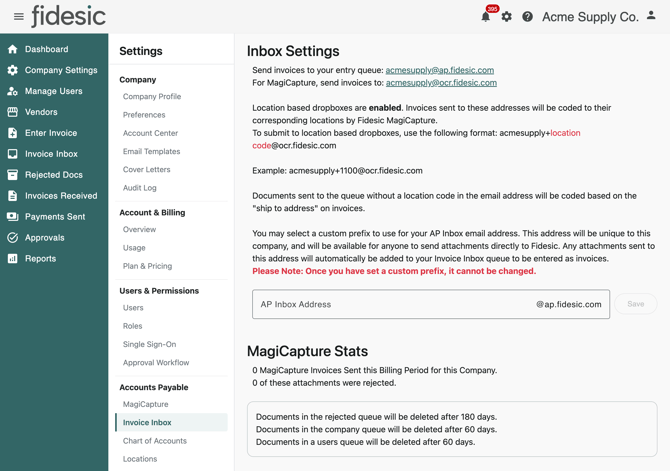
Send invoices to your entry queue: example@ap.fidesic.com
For MagiCapture, send invoices to: example@ocr.fidesic.com
Documents sent to the @ap.fidesic.com address will appear on the Invoice Inbox page. Documents sent to the @ocr.fidesic.com address will be sent to our OCR Queue for processing.
How does MagiCapture 'Learn'?
MagiCapture is designed to learn as you process your invoices. Process Overview:
- MagiCapture uses your default setup in your ERP for vendor addresses, names and coding.
- Invoices are "Adjusted" by users during the approval process.
- When an invoice is fully approved and exported to your ERP system, we then add to the library of defaults.
Here is the type of things we can learn:
- Vendor Name Aliases
- Alternate Vendor Addresses
- Default GL Codes or Recurring Purchase Lines
- Default Terms
If you are in trial mode, a common mistake is skipping the export step. Make sure to adjust and export invoices to your ERP between testing rounds — this completes the learning loop for MagiCapture.
How long does it take after submission?
Most documents are processed within a few minutes. If documents do not show up immediately, that means they have been flagged for internal review on our end and we'll modify the system to support those documents moving forward.
These invoices will show up in your Invoice Inbox queue. From this queue you can either let them await manual review on our end (where they will process automatically), or manually fill in any missing details. Any invoices finished off by your staff will not be charged as capture.
What if I have feedback or questions?
Email any questions or feedback to support@fidesic.com. We'll try the best we can to accommodate any OCR Requests.