![fidesic-logo-300px-2023-2.png]](https://help.fidesic.com/hs-fs/hubfs/fidesic-logo-300px-2023-2.png?height=40&name=fidesic-logo-300px-2023-2.png)
You can download your approval workflow in two forms: a PDF that auditors and managers can read and sign off, and a template file that holds the same workflow in a form Fidesic can load into another company.
Who can do this: anyone whose role has View Invoice Workflow or Edit Invoice Workflow for the invoice workflow, or View Payment Workflow or Edit Payment Workflow for the payment workflow.
Exporting a workflow
- Go to Settings → Users & Permissions → Approval Workflow.
- Choose the Invoice Workflow or Payment Workflow tab.
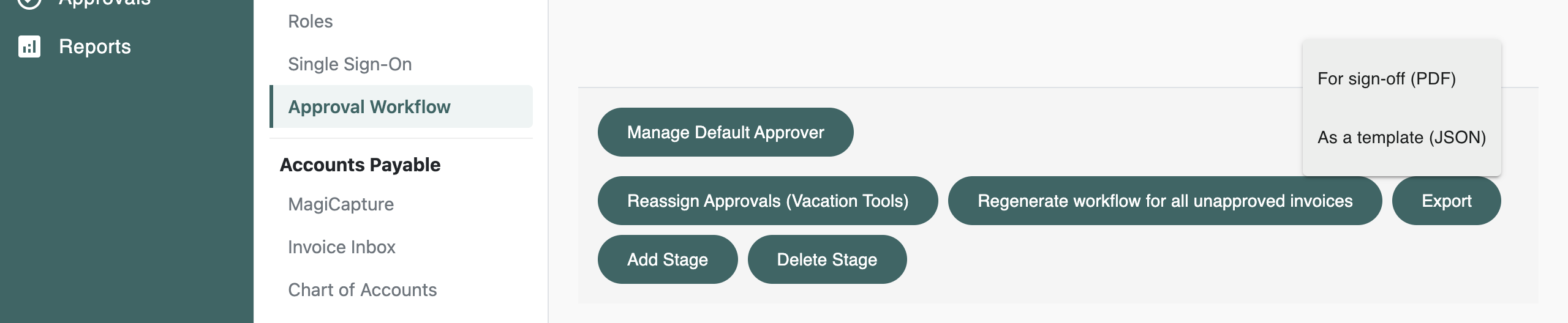
- Click Export at the bottom of the page, then pick For sign-off (PDF) or As a template (JSON).
The file downloads to your computer.
For sign-off (PDF)
The PDF is a readable copy of the whole workflow. It shows:
- your company and when the export was made, in your company's time zone
- the default approver
- each stage and its rules: the condition, the action, and the approvers, with either/or approvers joined by "or" and the role each was picked through
- on payment rules, the check signer
- per-user rules, grouped by the user they belong to
A short note at the top explains how either/or approvers, parent rules and per-user rules work, covering only the ones your workflow uses.
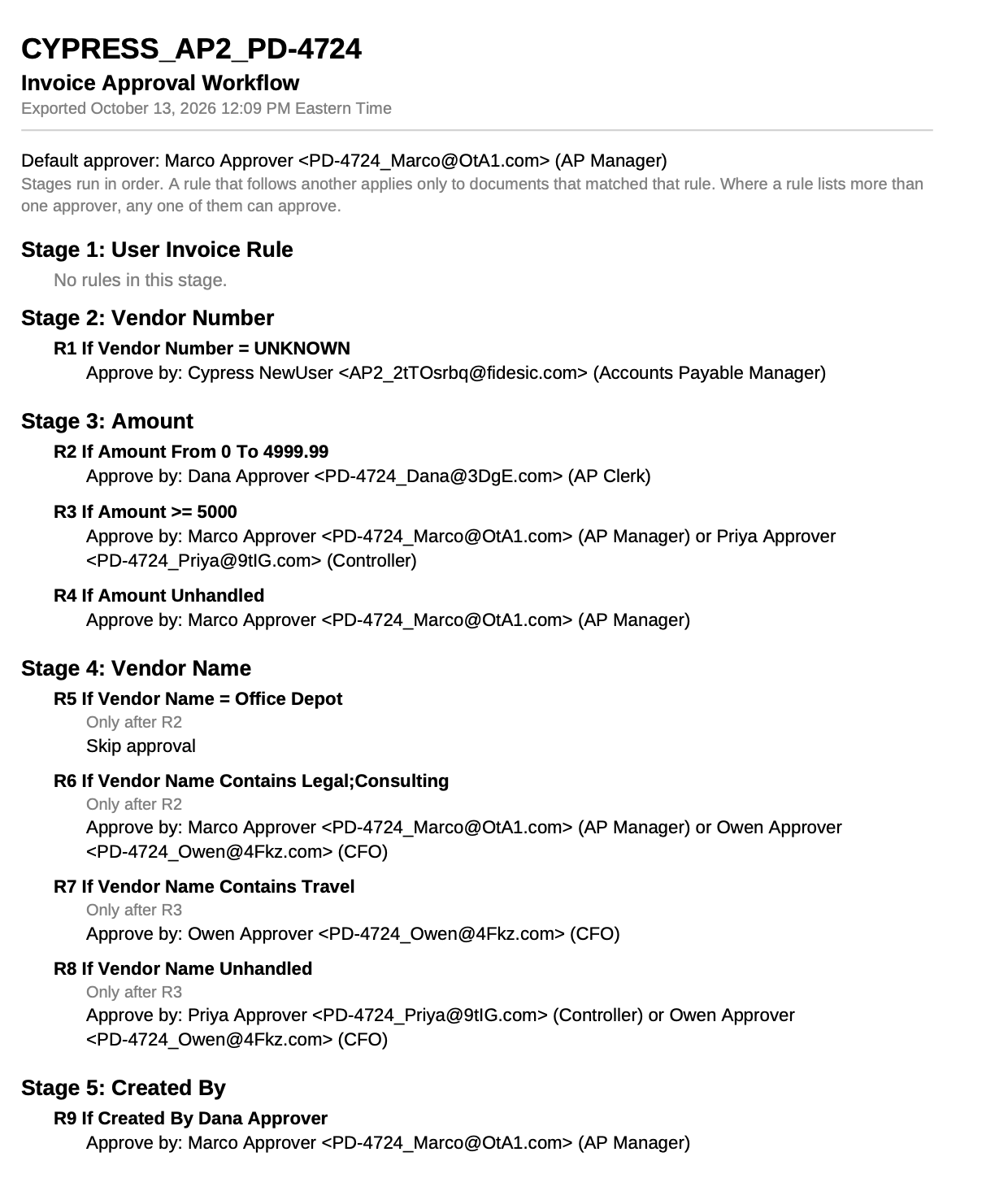
The export always shows each rule's own approvers. If someone is covering for an approver on vacation, the stand-in isn't listed.
As a template (JSON)
The template holds the same workflow, with users named by email, roles by name, and vendors, locations, GL codes and dimensions by name and code. It contains no internal IDs, so it can be loaded into a different Fidesic company that has the same users and codes. Loading a template is done through the Fidesic REST API, so it is usually done by your developer or by Fidesic support. The API checks every user, role and code in the template and lists anything it can't find before it changes anything.