![fidesic-logo-300px-2023-2.png]](https://help.fidesic.com/hs-fs/hubfs/fidesic-logo-300px-2023-2.png?height=40&name=fidesic-logo-300px-2023-2.png)
Check bundles let you mail several paper checks together in one packet to one address, by a tracked carrier such as USPS Priority Mail, UPS or FedEx. Normally, each check is mailed in its own envelope by USPS First Class.
Each check in the packet still shows its own payee. The bundle only controls where the packet is delivered. Use a bundle to:
- Pay several invoices to the same vendor, so they receive one packet instead of many envelopes.
- Send checks for several vendors to a single office that hands them out.
- Get checks delivered faster, with a tracking number.
Bundled checks are not mailed by the daily print run. You send each bundle yourself from the Check Bundles page.
Before you start: the Manage Check Bundles permission
You need the Manage Check Bundles permission on your role to see or use check bundles. Without it, the Check Bundles page does not appear in Company Settings.
No role has this permission by default, including existing admin roles. To grant it, an admin should:
- Go to Company Settings > Users & Permissions > Roles.
- Open the role that should manage bundles.
- Check Manage Check Bundles and save the role.
- Ask users with that role to refresh the page to pick up the change.
Give this permission only to people you trust to spend postage. Sending a bundle mails checks and is charged for expedited shipping.
Finding the Check Bundles page
Go to Company Settings > Payments > Check Bundles. The page lists every paper check that has not been sent to Checkeeper yet.
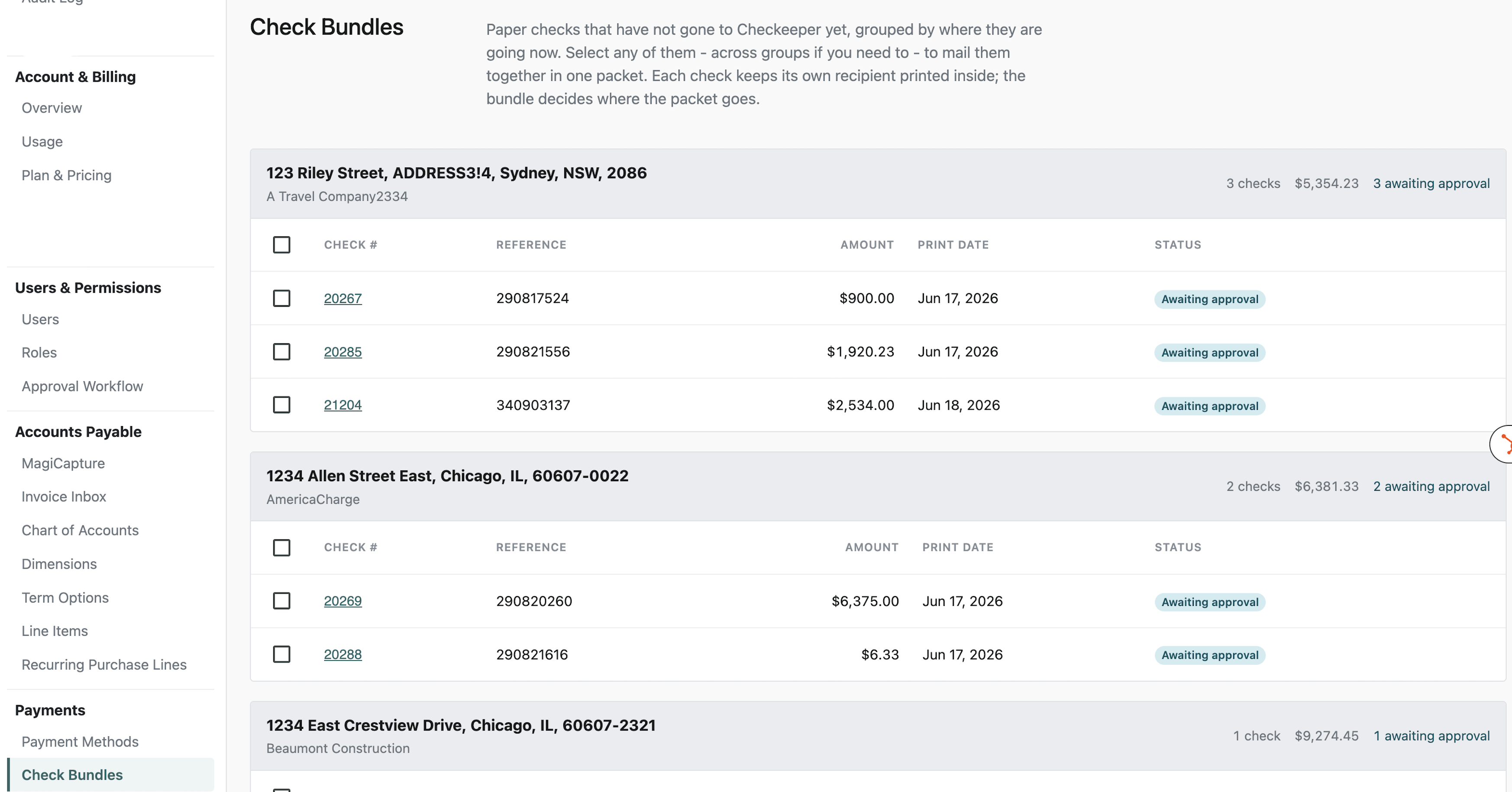
Checks are grouped by the address they are currently going to. Each group header shows the address and payee name, the number of checks and their total, and how many are still awaiting approval. Bundles you have already created appear at the top. Click a check number to open that payment.
Creating a bundle
- Check the box next to each check you want in the packet. Use the box in a group's header row to select the whole group. You can select checks from different groups, so checks for different vendors can travel in the same packet.
- In the bar at the top of the page, click Consolidate.
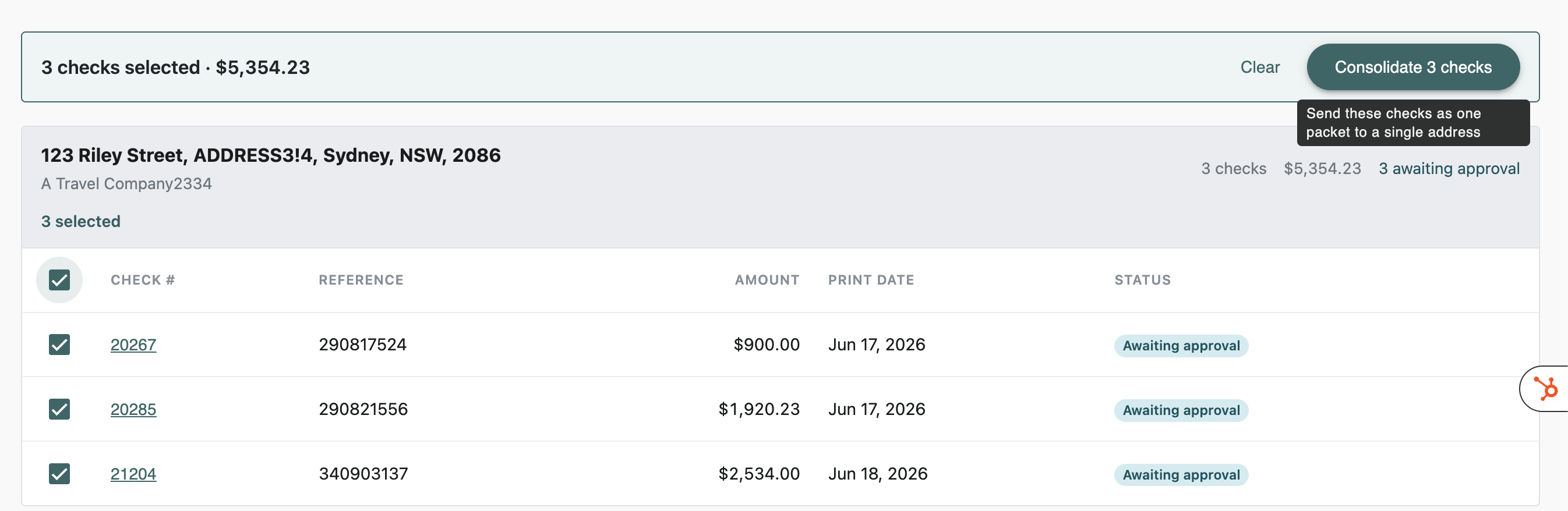
- In the Bundle Checks window, choose a Shipping Method.
- Under Deliver the packet to, enter the recipient name, address and phone number. These start filled with the payee's address, and you can change them.
- Under Return the packet to, enter where the carrier should return the packet if it can't be delivered.
- Click Bundle Checks.
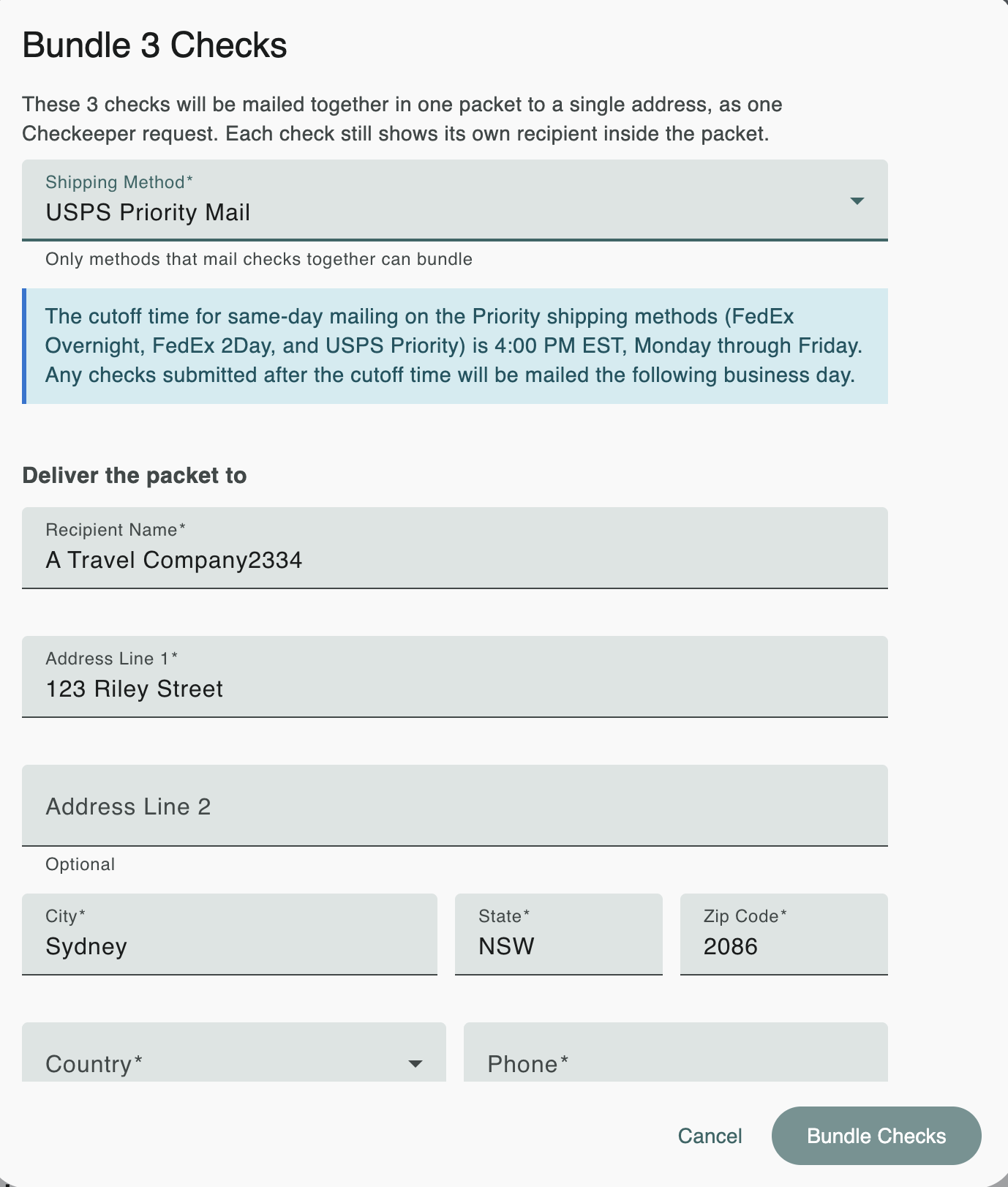
Both phone numbers are required, because the carrier uses them if there is a problem with delivery.
The available shipping methods are USPS Priority Mail, UPS 2nd Day Air, FedEx 2Day, UPS Next Day Air and FedEx Overnight. USPS First Class is not offered, because it mails every check in its own envelope.
Sending a bundle
A bundle is mailed only when you click Send Bundle on its group.
- Make sure every check in the bundle is approved. Send Bundle stays greyed out until they are.
- Click Send Bundle, review the confirmation, and click Send.
All the checks go to Checkeeper as one request, and the group is marked Sent.
Cutoff time: for FedEx Overnight, FedEx 2Day and USPS Priority Mail, bundles sent before 4:00 PM EST, Monday through Friday, are mailed the same day. Bundles sent after the cutoff are mailed the next business day.
Changing or breaking up a bundle before it is sent
Until a bundle is sent, click Addresses on its group to change the shipping method, the delivery address or the return address.
To break a bundle up, click Unbundle. Its checks go back to being mailed one per envelope by USPS First Class with the normal print run.
Cancelling a bundle after it is sent
If a sent bundle has not been mailed yet, you can recall it by clicking Cancel Bundle. Checkeeper is checked first to confirm that none of the checks have been mailed. If even one has already been mailed, nothing is cancelled. Checkeeper refunds the credits for a send it cancels, so you are charged only for the send that is mailed. A recalled bundle can be sent again later with Send Bundle.
Switching a check back to First Class
A check shipped on its own by an expedited method can go back to USPS First Class at any time before it is mailed, even after it has been sent. Click Ship First Class on the payment's detail page, in the Shipping row, or on the check's group on the Check Bundles page.
- If the check hasn't been sent yet, it goes back to the normal print run.
- If it has been sent or recalled, it is sent again right away by USPS First Class, on its own. The credits for the first send are refunded.
A check that was sent or recalled has to be approved before it can be sent again, so Ship First Class stays unavailable until it is. Once a check has been mailed, its shipping can't be changed.

Voiding a check in a sent bundle
Checkeeper treats all the checks in a sent bundle as one request, so voiding one of them recalls the whole bundle first. The void confirmation warns you when this applies, and afterwards Fidesic tells you what happened to the other checks:
- In a bundle of three or more, the other checks stay together in the recalled bundle. Send them again from the Check Bundles page.
- In a bundle of two, the other check leaves the bundle and goes out with the normal print run.
If you don't have the Manage Check Bundles permission, ask someone who has it to send the remaining checks again.
Tracking
The carrier assigns a tracking number when it collects the packet, not when you send the bundle. Once it is assigned, the tracking number appears on the bundle's group on the Check Bundles page.
Rules and limits
- A bundle must contain at least two checks.
- All the checks in a bundle must belong to the same company and be drawn on the same bank account.
- If a check in an unsent bundle is cancelled or switched to ACH, it leaves the bundle. If only one check would remain, the bundle is broken up, and that check is mailed on its own with the normal print run. The app warns you before switching a bundled check to ACH.
- Bundled checks are included in your Positive Pay file automatically after the bundle is sent.
- On a payment's detail page, a note shows when a check is part of a bundle. You manage the bundle itself from the Check Bundles page.